
You can expire a patient's medical alert that is no longer applicable. This keeps the medical alert in the patient's record in case you need to access it in the future.
Tip: In rare cases that you need to expire a medical alert that was set as permanent, you can modify the alert to be temporary, and then expire.
To expire a patient's medical alert
How to get there
-
Complete one of the following:
-
Next to the Patient Search field, clicktap the
 icon.
icon.
Note: The
icon only displays if the patient has a medical alert. -
From the Patient menu, under General, select Medical Alerts.
The Patient Information page displays with the Medical Alerts tab selected.
Note: If the correct patient is not already selected, use the Patient Search field to access the patient's record.
-
-
On a patient's Patient Information page > Medical Alerts tab, review the list of medical alerts.
-
If necessary, modify the medical alert to be temporary.
-
Select a medical alert that does not have an Expire button.

Note: The Expire button only displays for medical alerts that are temporary.
The Edit Medical Alert window displays.

-
Set the Permanent condition toggle to No.
-
ClickTap Save.
-
-
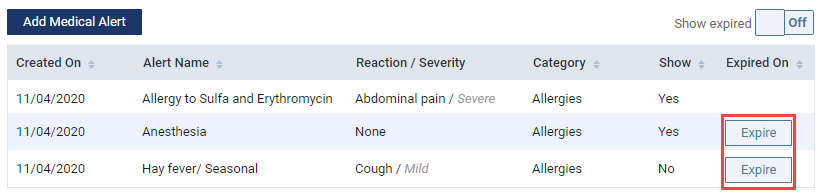
Next to a listed medical alert, clicktap Expire.
Note: An Expire button only displays for medical alerts that are not permanent.
A Note tooltip displays.

-
Enter the reason behind the expiration.
Note: The note cannot be edited after the expiration.
-
ClickTap Save & Expire.
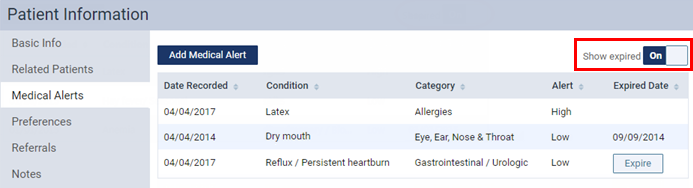
Tip: You can view expired medical alerts by setting the Show expired toggle to On.
Comments
0 comments
Please sign in to leave a comment.