


Using Power Reporting, you can generate the following types of custom reports:
-
Interactive reports - Modify a pre-defined template to suit your needs, or create a report from scratch. These reports are useful mostly for generating lists.
-
Analysis reports - Modify a pre-defined template to suit your needs, or create a report from scratch. These reports are useful mostly for performing calculations with reporting data
To generate a Power Report
How to get there
-
From the Home menu, under Reports, clicktap Power Reporting.
The Power Reporting page opens.
-
On the Power Reporting page, clicktap the icon that corresponds to the report that you want to generate.
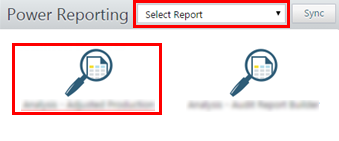
Notes:
-
Besides the system default reports, any saved reports (for only you and/or for all users in your organization) also appear in the list and as icons on the page. By default, the All Reports category is selected, so you can see all the available reports on the page.
-
There are two types of reports.

Interactive - These are customizable reports that you create or modify using the interactive report builder.

Analysis - These are customizable reports that you create or modify using the analysis report builder.
Tip: To filter the available reports on the page by category, select a category tab on the left:
-
My Reports - View reports that were created for only you.
-
Organization Reports - View reports that were created for all users in your organization.
-
Another category, such as Financial or Insurance - View the corresponding system default reports.
Note: In the Search field, you can begin typing the name of the report or the type of report that you are looking for to view only those reports that match your search criteria, and continue typing as needed to narrow the results.
-
-
The data from your database syncs with the reporting system automatically and displays the time of the last sync on the Data as of button. Data entered in Ascend Academic prior to the time shown will not be available on the report until the next sync. To view the time when the next sync is expected to occur, clicktap Data as of.

-
For an interactive or analysis report, to save the report template for later use, clicktap Save. In the Save Report window that displays, enter a name for the report, select whether you want to save the report as one of your reports (available only to you) or as an organization report (available to all users), and clicktap OK.

-
Export a report in any of the following file formats:
-
.html (interactive only)
-
.pdf
-
.xlsx
-
.csv
-

Comments
0 comments
Please sign in to leave a comment.