
You can delete an unlocked clinical note. A clinical note is unlocked until it has been reviewed and signed.
Note: When you delete a clinical note, the deletion is recorded in the Audit Log page as a Clinical Note type with 'Delete' in Action.
To delete a clinical note
How to get there
-
From the Patient menu, under Clinical, select Progress Notes.
The patient's clinical record displays with the Progress Notes tab selected.
Note: If the correct patient is not already selected, use the Patient Search field to access the patient's record.
How to get there
-
From the Patient menu, under Clinical, select Chart.
The patient record displays with the Chart tab selected.
Tip: You can also access clinical notes from the Progress Notes, Quick Exam, Perio, Imaging, or Tx Planner tabs.
Note: If the correct patient is not already selected, use the Patient Search field to access the patient's record.
How to get to there
-
From the Home menu, under Location, select Overview.
The Provider Overview page displays.
Note: If the Overview page displays instead, set the Provider Overview toggle to Yes.
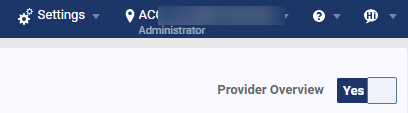
Important: If you are not a provider, the toggle does not display.
-
Select the Unsigned Clinical Notes widget.
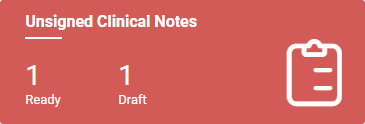
The Clinical Note Tasks page displays.
-
On a patient's clinical record > Progress Notes tab, select a clinical note.

Tip: You can also access clinical notes from other areas such as the Chart tab or the Clinical Note Tasks page.
Note: Only your clinical notes display when working from the Clinical Note Tasks page.
The Clinical Note window displays.

-
ClickTap Delete.
-
When prompted to confirm, clicktap Delete again.
Comments
0 comments
Please sign in to leave a comment.