
You can delete any of the custom quick-picks for any of your location's clinical note templates or organization's shareable set of clinical notes templates as needed.
Note: You cannot delete quick-picks that are provided by default in Ascend Academic.
Important: Deleting a quick-pick does not affect clinical notes that have already been entered using that quick-pick.
To delete a quick-pick
How to get there
-
(Optional) If you want to delete a quick-pick for location-specific templates, you can select the location from the Location menu.
-
From the Settings menu, under Patient Care, select Clinical Note Templates.
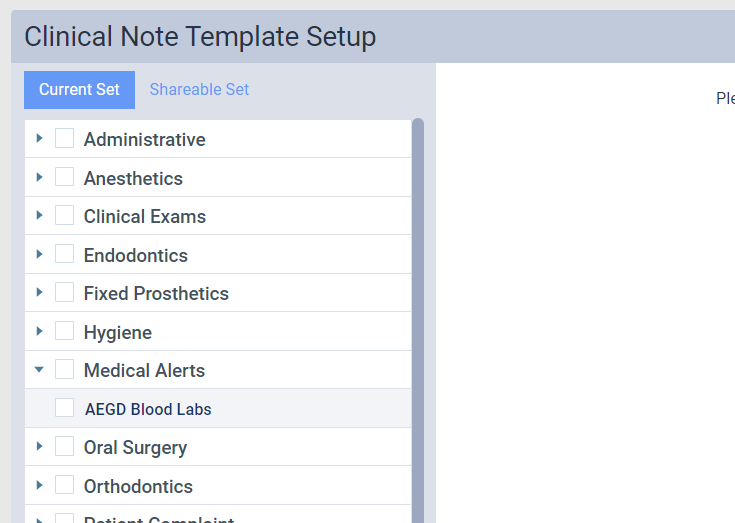
The Clinical Note Template Setup page displays.
Note: If the correct location is not already selected, use the Location menu to select it.
-
On the Clinical Note Template Setup page, complete one of the following:
-
To delete a quick-pick for location-specific templates, leave the Current Set tab selected.
-
To delete a quick-pick for shareable templates, clicktap the Shareable Set tab.
-
-
Complete one of the following:
-
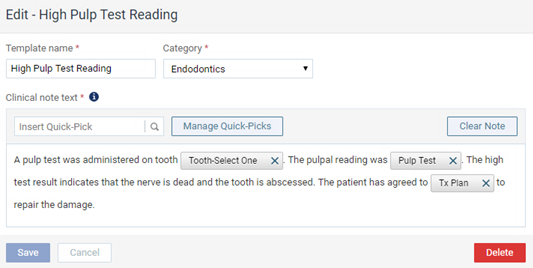
ClickTap a category to view the corresponding templates and select a template.
The options for editing the clinical note template display.
-
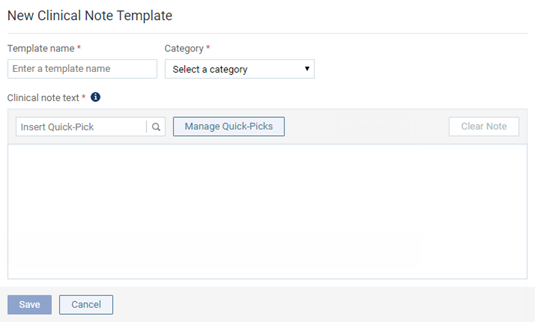
ClickTap New Template to create a new template in addition to deleting a quick-pick.

The options for entering a new clinical note template display.
-
-
ClickTap Manage Quick-Picks to display the Manage Quick-Picks window.

-
Select the quick-pick that you want to delete and clicktap Delete.

Important: If the quick-pick is used in any clinical note templates, the placeholder for the quick-pick will be deleted from those templates. Any clinical note templates that contain only the quick-pick being deleted will be deleted.
-
When prompted to confirm, clicktap Delete.
Comments
0 comments
Please sign in to leave a comment.