
The day sheet displays charges, payments, adjustments, and unearned revenue for your organization, locations, and individual providers for a specified date range.
To view the day sheet
How to get to there
-
From the Home menu, under Reports, clicktap Day Sheet.
The Day Sheet page displays.
-
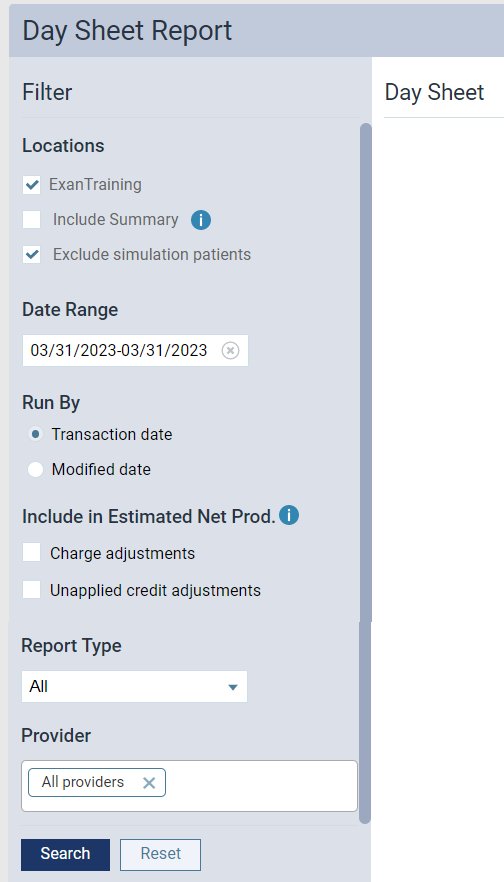
On the Day Sheet page, set the filters as necessary.
-
Under Locations, complete any of the following:
-
Select the All check box to view transactions and transaction type totals for all locations in the organization.
Note: If you deselect the All check box, a warning displays, prompting you to select a location.
-
Select the check box next to the current location name to view the transactions and transaction type totals for that location.
-
Click Select Locations to open the Locations window and select all necessary locations.
-
-
Select the Include Summary check box to view the organization's transaction type totals (the sum of the totals for all locations in the organization).
-
Deselect the Exclude simulation patients check box to include sim patient data in the report.
Note: By default, simulation (sim) patient data is excluded. If the report includes sim patient data, the sim patients will display on the report with a SIM label.
-
ClickTap the Date Range field and select an entry to determine which date or date range of transactions to include on the report.
-
Use the Run By filter to run the report by the Transaction date or Modified date. Running the report by transaction date only displays data based on the date you selected the transaction items, and only displays the current amount for that selected date. It does not consider the creation date or changes made to the items.
Running the report by the modified date generates a history record. The report's metrics take into account the changes, corrections, and transfers of responsibility made to the transactions in the Ledger. Also, it allows you to check entries made for the current date, and makes sure that backdating/corrections have been recorded properly.
-
Use the Include in Estimated Net Prod. filter to include charge adjustments and/or unapplied credit adjustments in the report's calculation of estimated net production. To include charge adjustments to the report, select the Charge adjustments check box. To include the Unapplied credit adjustments check box, select the Unapplied credit adjustments check box.
Important: This filter only displays if you set the Run By filter to Transaction date.
-
From the Report Type drop-down list, select the types of transactions to include on the report:
-
All
-
Payments Only
-
Adjustments Only
-
-
ClickTap in the Provider field and select multiple providers or select All providers to set which provider totals are included on the report.
Note: If you select All providers, the report displays all totals (for the practice and each provider).
-
-
When the filters are set, clicktap Search.
-
When prompted, clicktap Generate.
Wait for the report to load. This can take from one to five minutes, depending on the date range.
-
Review the report results as necessary.

-
(Optional) To print the report, clicktap Print, and then clicktap Print again in the generated print version.
-
(Optional) To export the report to Excel, clicktap Export.
Note: If you export the report, you can open the .xlsx file from your default downloads folder. When viewing exported reports, you can change the cell format as necessary.
Comments
0 comments
Please sign in to leave a comment.