
You can quickly view the history of any appointment. You can see who created the appointment, when it was created, and the initial appointment details, such as the date and provider. You can also see who made changes to the appointment, when those changes were made, and what appointment details were changed. The appointment's history record shows changes to its status, operatory, provider, assisting provider, date, time, and/or duration.
To view an appointment's history
How to get there
-
From the Schedule menu, select Calendar.
The Calendar page displays.
-
On the Calendar page, select an appointment to open the Appointment Information panel.
Note: If you select an appointment that has the (Confidential) note, its Appointment Information panel may not display as you are attempting to view a confidential patient's information. To access a confidential patient's information, you need to receive permission from a user that has the security rights to view confidential patients' information. To receive permission, search and select the patient in the Patient Search field, and have a user with the security rights enter their credentials in the generated Access Confidential Patient window.
-
ClickTap the Appointment History icon.

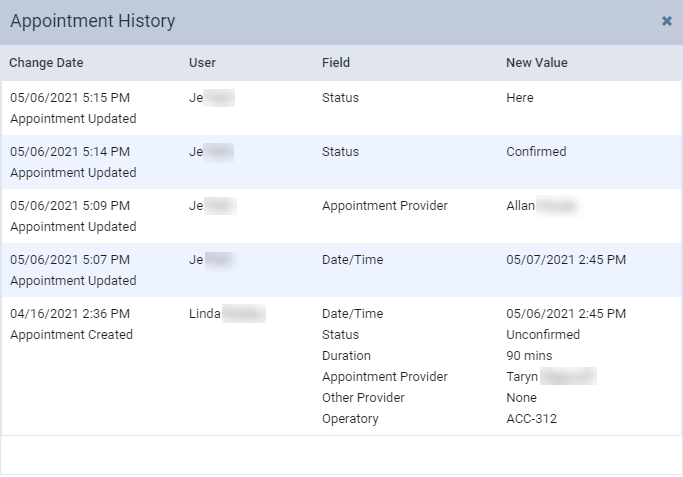
The Appointment History window displays.
-
Review the following fields:
-
Change Date - Date and time of the change and the action.
-
User - Name of the user that made the change.
-
Field - The field(s) that were changed.
-
New Value - What the field(s) were updated to.
-
-
When ready, clicktap the X icon close the window.
Comments
0 comments
Please sign in to leave a comment.