
A user role is a set of security rights that you can assign to a user account to grant or restrict access to certain locations in your organization and/or certain features of axiUm Ascend by location.
Note: User roles are global (available to all locations across your organization).
To add a user role
How to get there
From the Settings menu, under Location, clicktap User Roles.
The User Roles page opens.
On the User Roles page, do one of the following:
Create new - To create a user role from scratch, clicktap Create New.
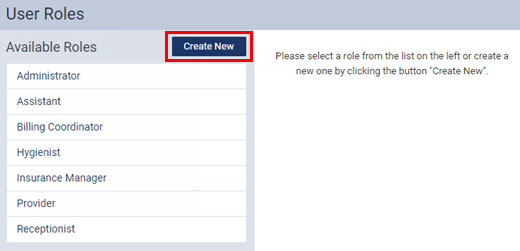
Base on existing - To add a user role based on an existing one, select a role that is similar to the one that you want to create.

The options for creating or editing the user role become available. The options that are available depend on whether you are creating a new role or making one that is based on an existing role.
New

Based on Existing
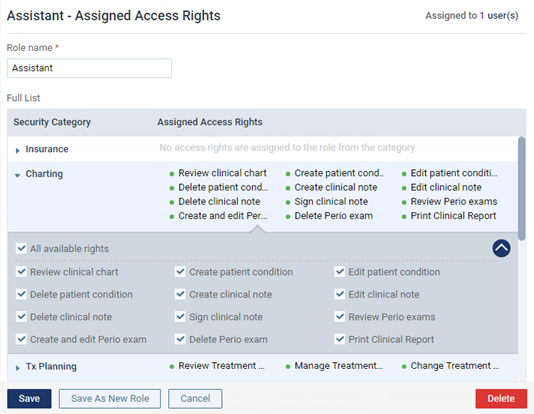
For an all new user role, type a Role name (the role name must be unique). You can use a job position (such as Provider or Receptionist), a user name (such as John Smith or Millie's Rights), or some other convention. For a user role based on another, skip this step.
Under Full List, for each Security Category, clicktap the category to view the corresponding security rights. Select the check boxes of the rights that you want to assign to this user role. To select all the rights in a given category at one time, select the All available rights check box. Clear the check boxes of any rights that you do not want to assign to this user role.
Do one of the following:
For an all new user role, clicktap Save.
For a user role based on another, clicktap Save As New Role. In the New Role dialog box that appears, type a New Role Name (the role name must be unique), and then clicktap Save.

Comments
0 comments
Please sign in to leave a comment.