
You can manage lab cases by contacting the labs and updating the lab cases' statuses on the Lab Cases page. The page displays a list of outstanding and received lab cases that are attached to appointments for a specific day or week.
To manage lab cases
How to get there
-
From the Schedule menu, select Lab Cases.
The Lab Cases page displays.
Tip: You can also access the Lab Cases page from the location's Overview page > Outstanding Lab Cases widget.

-
On the Lab Cases page, complete one of the following:
-
On the toolbar, clicktap the month and select a date from the displayed calendar.

-
On the toolbar, clicktap the
 and the
  buttons or the 1 w, 1 m, or 6 m buttons to go backward or forward by a day, week, month, or six months .
-
On the toolbar, clicktap Today to return to the current date if you are viewing a different date.
A list of appointments on the set date with lab cases display.
Notes:
-
Appointments are grouped by date and then by lab in chronological order.
-
A patient's appointment displays on the Outstanding or Received tab according to the status of the attached lab case.
-
-
(Optional) Customize the view settings.
-
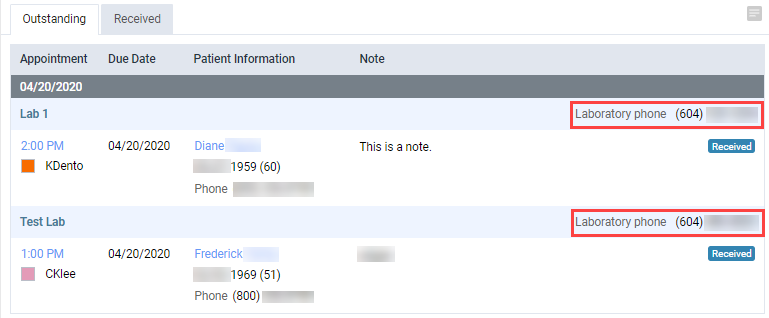
ClickTap the Outstanding tab to view a list of appointments with outstanding lab cases or clicktap the Received tab to view a list of appointments with received lab cases.
Note: An outstanding lab case is a lab case that has not received the lab work from a lab, and a received lab case is a lab case that has received the lab work from a lab.
Appointments with outstanding or received lab cases display.
Note: The Due Date column displays the due date of the lab case and the Note column displays any notes on the lab case.
-
Use the lab's phone number to contact the lab.
-
Next to each appointment, complete one of the following as needed:
-
ClickTap Received to indicate the lab work has been received from the lab.

-
ClickTap Outstanding to indicate the status is incorrect and the lab work has not been received from the lab.

-
Comments
0 comments
Please sign in to leave a comment.