
Before publishing a new or updated patient form, validate it to make sure patients can easily complete and submit the form and that their information is received in the correct workflow.
Important: Use a test patient and non-identifying sample information. Do not use real patient documents or personal information during testing.
To validate a patient form
Validate the form using one of the following methods:
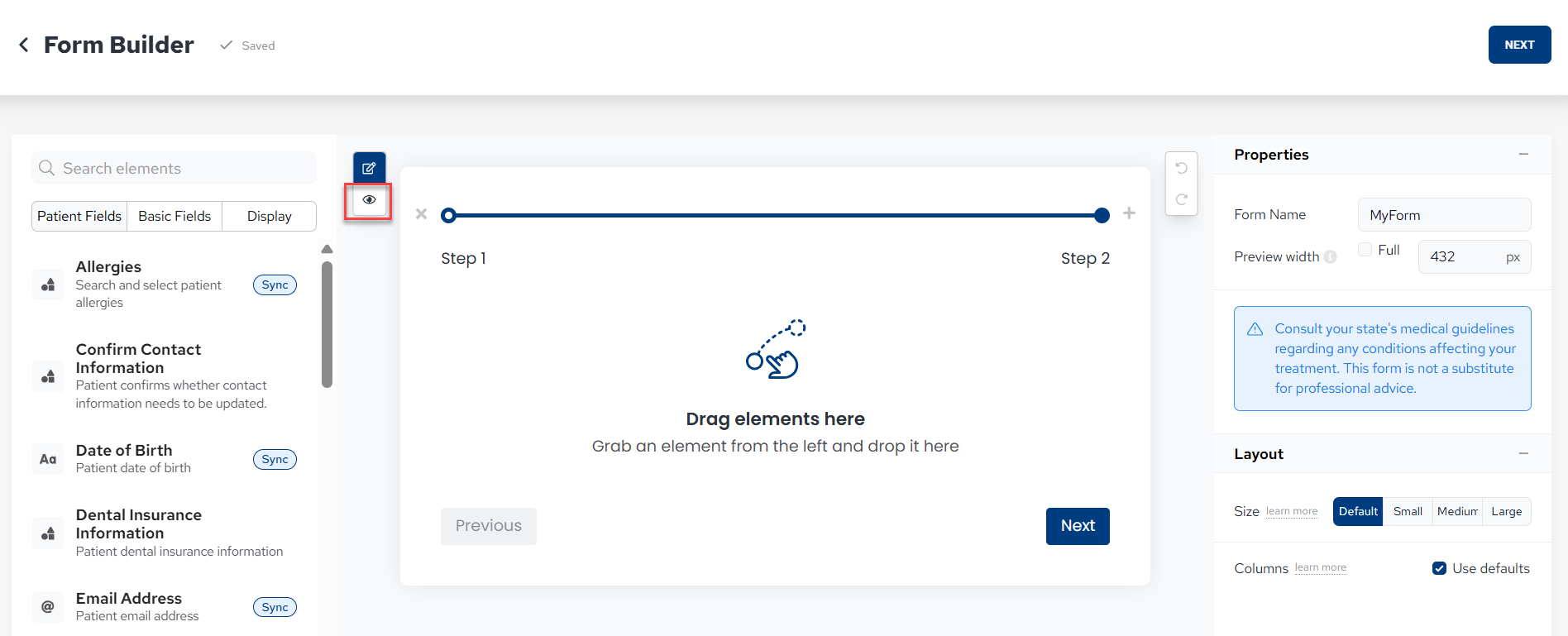
Preview the form in Form Builder: Go to Form Builder > Forms, open the form you want to validate, and select the Preview icon. Review each page to verify that the questions, required fields, conditional fields, images, and other form elements display and work as expected. Make any necessary changes before publishing.
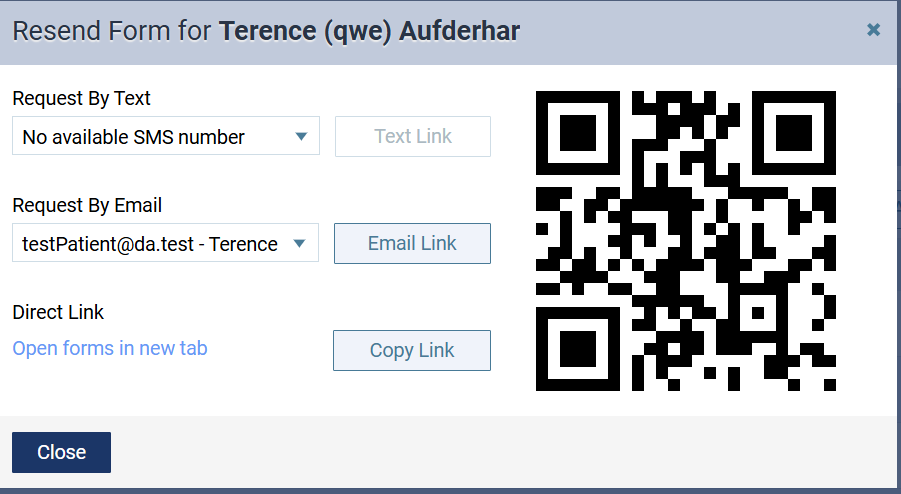
Test the complete patient experience: Open a test patient record. On the Patient menu, select Patient Forms, locate the form, and select the Send icon. In the Resend Form window, under Direct Link, select Open forms in new tab.
Review the following content for accuracy and correct sequencing:
Form name and introduction
Sections and questions
Instructions and help text
Response options
Confirm that:
Required fields must be completed before the patient can proceed.
Optional fields can be left blank.
Selection controls, text fields, date fields, and other response controls work as expected.
If the form includes conditional questions, test each applicable response and confirm that the follow-up questions appear only when their conditions are met.
Comments
0 comments
Please sign in to leave a comment.