
When necessary, you can re-assign evaluations with a New or InProgress status to other faculty providers.
Example: An assigned evaluator can no longer submit their evaluation, possibly due to personal emergencies or they no longer work at the clinic.
You can assign evaluations from one of the following pages:
-
Faculty Evaluations - This page displays pending evaluations based on the evaluation's generation date.
-
Student Evaluation Search - This page displays evaluations based on the associated student's name.
Note: You must have the Assign an evaluator to an Evaluation Request security right to re-assign evaluations. The security right is dependent on the Evaluate Other Users' Evaluation Request security right.
To assign faculty providers to an existing evaluation
How to get there
-
From the Academic menu, clicktap Faculty Evaluations.
The Faculty Evaluations page displays.
How to get to there
-
From the Academic menu, clicktap Evaluation Search.
The Student Evaluation Search page displays.
-
Generate a list of completed evaluations at one of the following pages:
-
The Faculty Evaluations page
-
On the Faculty Evaluations page, under Views, clicktap My Pending Evaluations.
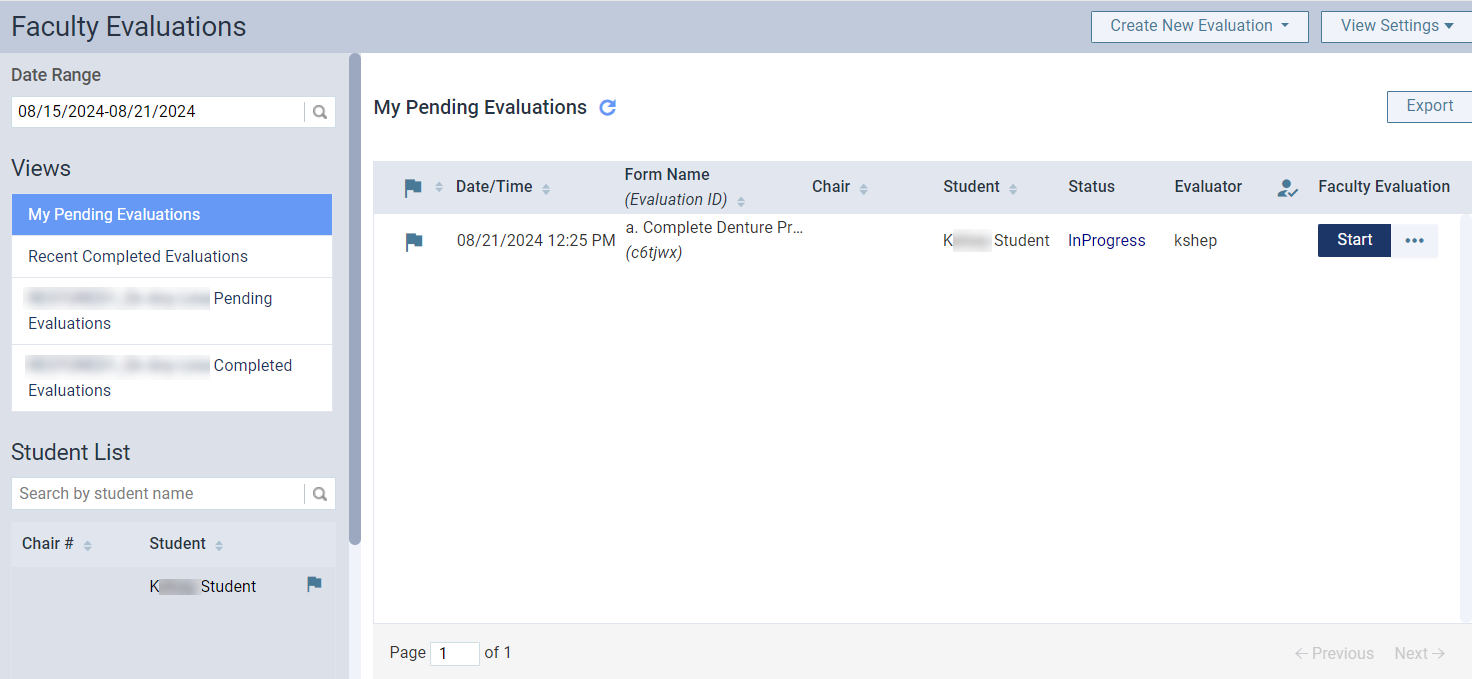
All evaluation requests that require your contribution display.

-
-
The Student Evaluation Search page
-
On the Student Evaluation Search page, select a student under the Student List.

Tip: You can use the search field above the list to locate a specific student by entering their name.
All evaluation requests associated with the student display.

-
-
-
(Optional) Filter the list of evaluations as necessary:
-
Filter the Faculty Evaluations page
-
ClickTap the Date Range field and select an option to display evaluations within a certain range.
Note: The field defaults to today's date.
-
If you selected Specific Date, select a date from the calendar that displays and clicktap Done.
-
If you selected Custom Range, select two dates from the calendar that displays and clicktap Done.
-
-
ClickTap the
 column header as necessary to sort the requests by competency or sessional evaluations.
-
Under Student List, clicktap the Search by student name field and enter the student name to narrow the evaluations list to a particular student.
Tip: Competency evaluation requests display in the list with the
icon. 
-
Under Form List, select an evaluation form to display only evaluation requests with a specific evaluation form.
Tip: If necessary, you can use the Search by form name search field to search for a specific evaluation form.

-
-
Filter the Student Evaluation Search page
-
Enter an evaluation form name in the Search by form name field to narrow the list to requests that were created with that form.

-
-
-
Next to an in-progress request, clicktap the
 icon and select Assign Evaluator to display the Assign Evaluator(s) to Evaluation Request window.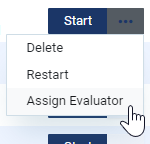
Important: If the evaluation request meets the required number of submitted evaluations from faculty providers and is waiting for a self-evaluation from the assigned student provider, the button does not display.
Note: All evaluators currently assigned to the evaluation request display on the window in disabled fields.

-
ClickTap Add Evaluator, enter the faculty provider's name or short name, and select them from the search results.
-
If necessary, repeat Step 4 to add multiple faculty providers.
Note: You can assign a maximum of 2x the required number of evaluators to the evaluation. Once the number reaches the maximum, the Add Evaluator button is disabled.
Example: If an evaluation requires two evaluators, you can assign a maximum of four evaluators.
-
(Optional) To remove an added faculty provider, clicktap the corresponding X icon.
-
ClickTap Save.
Comments
0 comments
Please sign in to leave a comment.