
The acquisition agent is a small application that runs in the background and handles the communication between your acquisition devices and Ascend Academic Imaging. To benefit from the latest enhancements of Ascend Academic Imaging, you should verify that you have the most recent version of the acquisition agent installed on each computer that you want to acquire images from.
Note: Before you update the acquisition agent, you should be logged in to your operating system (Windows or MacOS) as a local administrator, not as a domain administrator.
To update the acquisition agent
How to get to there
-
From the Patient menu, under Clinical, select Imaging.
The patient record displays with the Imaging tab selected.
Tip: You can also access imaging from other clinical areas such as Chart, Progress Notes, Quick Exam, Perio, or Tx Planner.
Note: If the correct patient is not already selected, use the Patient Search field to access the patient's record.
-
Complete one of the following based on your operating system:
-
Windows
-
ClickTap the
 icon in the notification area of the Windows taskbar and select Check For Updates.
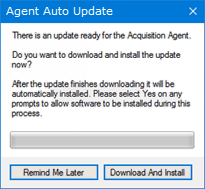
If an update is available, the Agent Auto Update window displays.
-
ClickTap Download And Install.
-
Follow the instructions in the Acquisition Agent Setup to complete the upgrade.
-
-
MacOS
-
On the patient's record > Imaging tab, clicktap the Imaging tab menu and select Acquire Images.

-
ClickTap the Acquisition Agent icon on the MacOS dock.

-
From the Acquisition Agent menu, select Preferences.

The Acquisition Agent Preferences window displays.

-
ClickTap Check For Updates.
If an update is available, the Agent Auto Update window displays.

-
ClickTap Download And Install.
-
Follow the instructions in the Acquisition Agent Setup to complete the upgrade.
-
-
Comments
0 comments
Please sign in to leave a comment.