
Certain settings in Google Chrome may prevent Ascend Academic users from successfully acquiring images. Updating the relevant settings can resolve the issue.
To update Chrome settings:
1. When logged in to Ascend Academic, click the View site information icon in the Chrome address bar, to the left of the URL.

2. Select Site Settings.

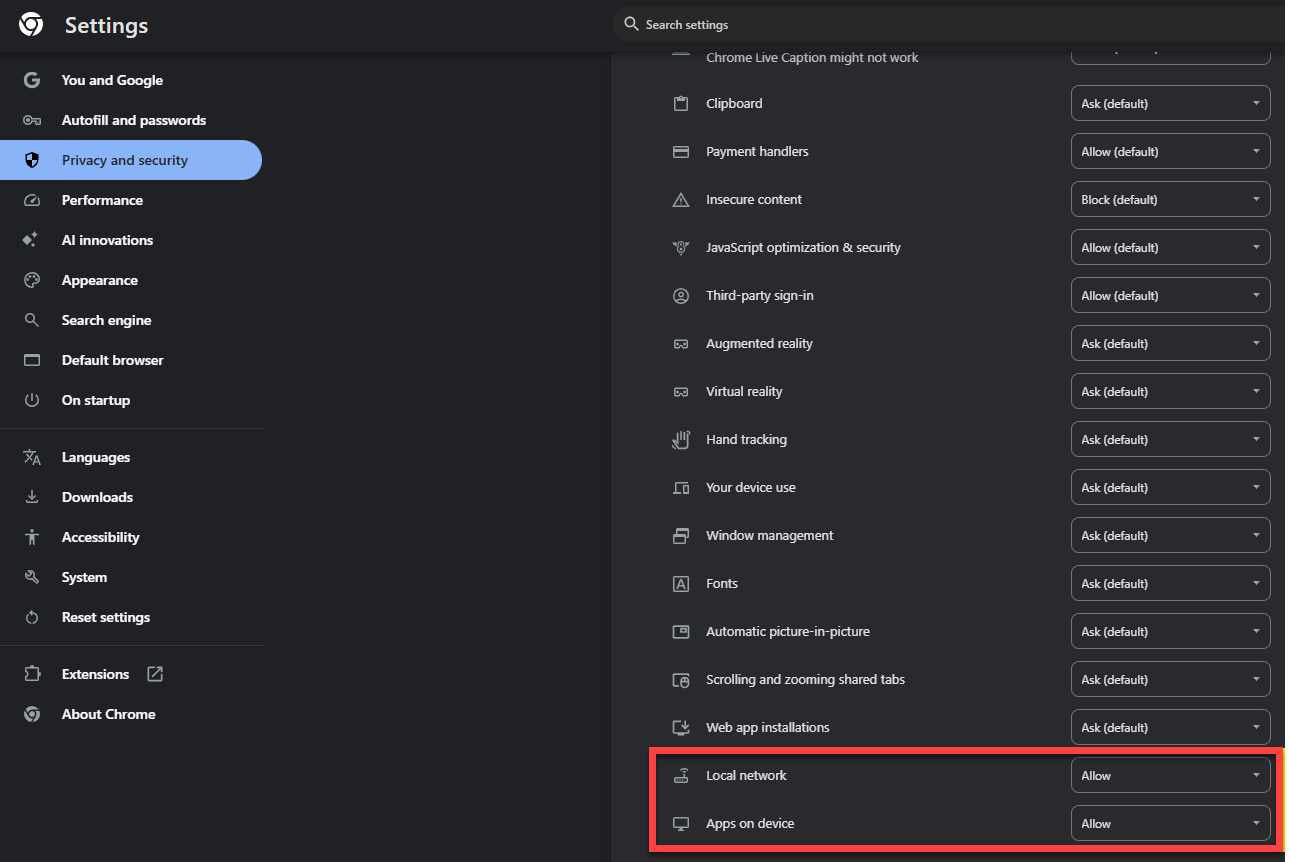
3. Scroll to the bottom of the Site Settings list, and then change the Local network and Apps on device settings to Allow. Close the Site Settings tab.
4. If prompted at the top of Ascend Academic, click Reload.
5. Attempt to access the Acquire Images screen in Ascend Academic.
Comments
0 comments
Please sign in to leave a comment.