
If a patient has images on this computer that were acquired while using offline mode and have not been synchronized with that patient's online record, you can view those images.
Note: You cannot delete exams while using the offline mode, but you can delete images from an exam unless there is only one image.
To view offline images
-
Close all Chrome browser windows.
Important: To prevent issues that may occur while starting the offline mode, close all Chrome browser windows that may be open.
-
Complete one of the following:
-
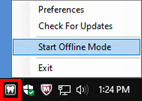
For Windows users - ClickTap the Acquisition Agent icon in the notification area of the Windows taskbar and select Start Offline Mode.
-
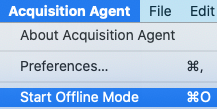
For Mac users - ClickTap the Acquisition Agent icon on the dock. From the Acquisition Agent menu, select Start Offline Mode.
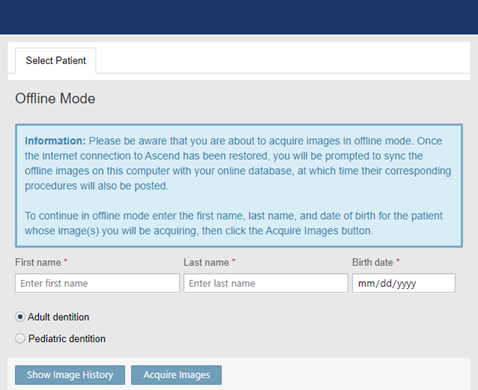
A new Chrome browser window opens with Ascend Academic Imaging running in offline mode.
-
-
Enter the First name, Last name, and Birth date of the patient whom you want to view images for and clicktap Show Image History.
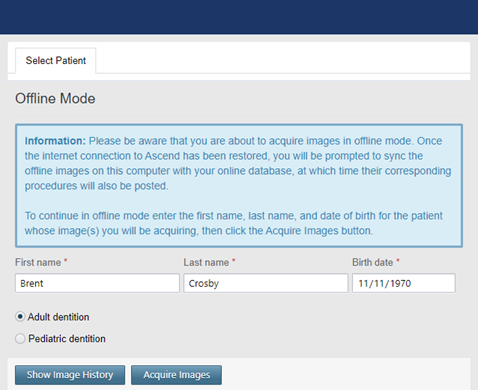
The Show Image History tab is selected by default.
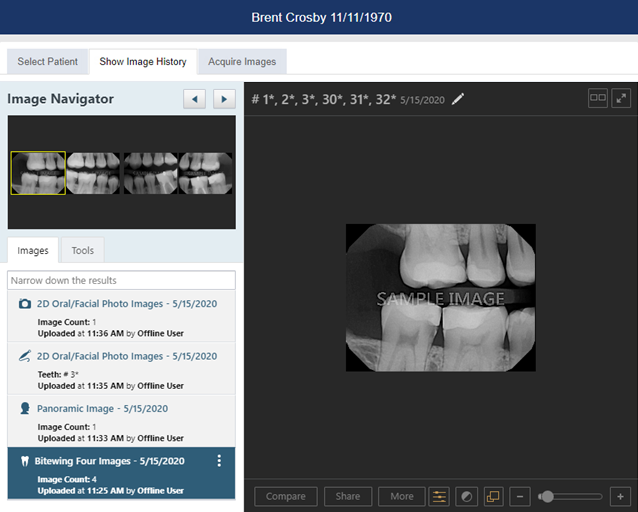
You can view the patient's entire image history chronologically and quickly navigate between each image as well as work with images as you normally would while using Ascend Academic Imaging online.
Example: You can process (such as enhance or annotate) images, compare images, export images, and resume incomplete exams.
Tip: To display only the images that match the filter criteria that you specify, clicktap in the Narrow down the results field.
-
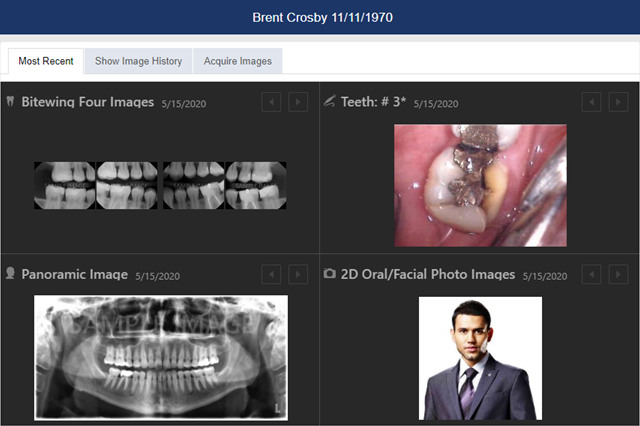
To view the patient's most recent images by category, clicktap the Most Recent tab.
-
Review as necessary.
In any of the boxes, which correspond to categories (intraoral X-rays, intraoral photos, extraoral photos, and extraoral X-rays), you can perform any of the following:
-
ClickTap the Previous or Next

 buttons to navigate between images.
 -
ClickTap an image to view that image on the Show Image History tab.
-
-
When finished viewing the patient's images, close the Chrome browser window that has Ascend Academic Imaging running in offline mode to end the session. You can restart the offline mode if you need to acquire or view images for another patient.
Comments
0 comments
Please sign in to leave a comment.