
If you are having difficulty accessing Ascend Academic Imaging online, you can still acquire images using offline mode.
Example: A bad internet connection.
Offline mode allows you to acquire new images for diagnosis and synchronize those images with your online database once you are back online. It uses .NET Core, Vista DB as a local database (for temporary storage of patient information, metadata, images, etc.), and a Kestrel web server (embedded in the acquisition agent). The latest acquisition agent installer automatic installs and sets up the database and web server.
The workflow for acquiring images offline is similar to online mode, except for the following differences:
-
You start offline mode from the acquisition agent.
-
You enter a patient's information prior to acquiring images.
-
The billing and provider options are not available and must be selected when you later synchronize the images.
Note: If the acquisition stops at any point because of a device error, you can fix the issue and clicktap Start to proceed with the acquisition.
To acquire offline images
-
Close all Chrome browser windows.
Important: This helps prevent issues that may occur while starting the offline mode.
-
Access the acquisition agent:
-
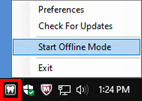
Windows users - ClickTap the Acquisition Agent icon in the notification area of the Windows taskbar and select Start Offline Mode.
-
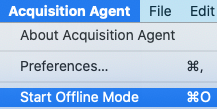
Mac users - ClickTap the Acquisition Agent icon on the dock. From the Acquisition Agent menu, select Start Offline Mode.
-
-
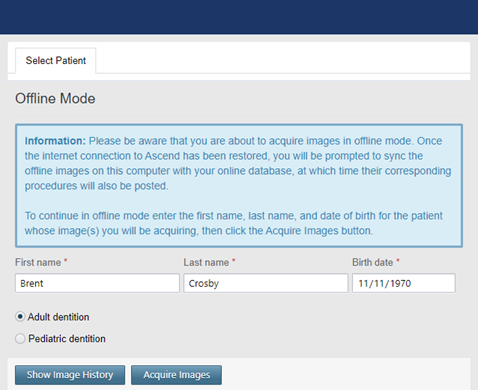
When prompted with a new Chrome browser window that displays Ascend Academic Imaging running in offline mode, complete the following fields and clicktap Acquire Images.
-
Enter the First name, Last name, and Birth date of the patient whom you want to acquire images for.
-
Select whether the patient has Adult dentition or Pediatric dentition.
The Acquire Images tab is selected by default, and the options for acquiring images using standard imaging procedures display.
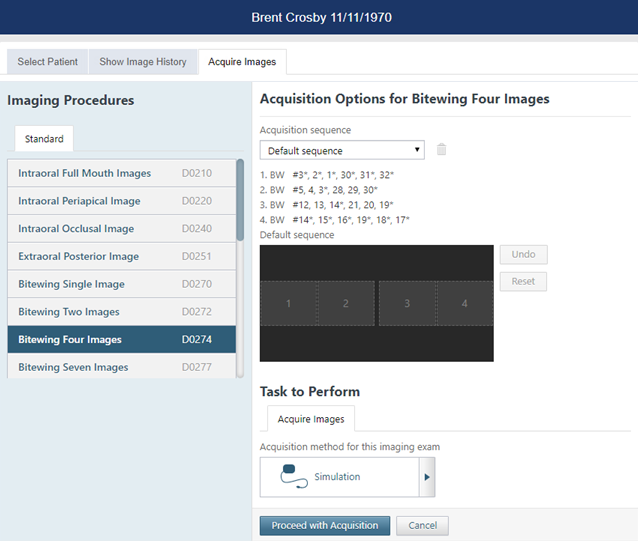
Note: The billing and provider options are not available while you use the offline mode. They can be selected when you synchronize the images after online mode has been restored.
-
-
Acquire images similarly to how you would when using online mode.
-
When you finish acquiring the patient's images, close the Chrome browser window that is running offline mode to end the offline acquisition session. You can restart offline mode if you need to acquire or view images for another patient.
Comments
0 comments
Please sign in to leave a comment.