
You can view the history of text message conversations between your office and a patient's primary contact.
Notes:
-
Ascend Academic only communicates with patients' primary contacts and does not store any messages from anyone that is not set as a primary contact.
-
Each location has its own mobile number for text messages, which can be located on the Patient Information page > Preferences tab > Text Messages section >
 icon.
icon. -
Depending on your security rights, you may have access to all text messages at your location or text messages from only your patients' primary contacts. A patient is considered your patient when they have you set as their primary provider.
Important: Text messages are linked to primary contacts. If a patient changes their primary contact, the original message thread becomes unusable and you must create a new thread with the new primary contact. Any messages before the change remain on the original thread and are associated with the original primary contact. Any messages after the change are stored on the new thread and are associated with the new primary contact. If a patient's primary contact changes their mobile number, the existing message thread is maintained, but is now associated with the new number.
To view text messages
How to get there
-
From the User name menu, select Inbox.
Tip: You can also access the Inbox page from the Home menu.
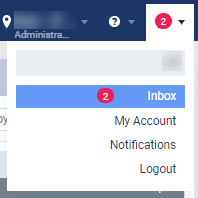
The Inbox page displays.
How to get there
-
From the Patient menu, under General, select Patient Connection.
The Patient Connection page displays.
Note: If the correct patient is not already selected, use the Patient Search field to access the patient's record.
How to get there
-
From the Schedule menu, select Calendar.
The Calendar page displays.
-
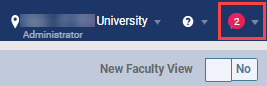
(Optional) Check the red circle on your User name menu to confirm there are unread text messages for your location. The red circle displays the total number of unread text messages at your location. If there are no unread messages, the red circle does not display a number.
Notes:
-
If you have unread text messages and unread eRx notifications, a red circle displays for each.
-
If you have access to the text messages of only your patient's primary contacts, the red circle displays the total number of your unread messages. If you have access to all messages, the red circle displays the total number of unread messages at your location.
-
-
You can view and manage the text messages in the following locations:
-
The Inbox page
-
On the Inbox page, review the list of primary contacts on the left panel.

The panel displays text messages received from primary contacts in chronological order. Each entry displays the primary contact's full name, birth date, and the last message they sent with a time stamp. If a patient has them as their primary contact and has an upcoming appointment, the patient's name, date and time of the appointment, and appointment provider display. Any unread messages display a red circle with the total number of unread messages beside the time stamp.
-
(Optional) Set the filters as necessary to narrow the list of text messages.
-
View - ClickTap the drop-down menu. From the left and right columns, select options and clicktap Done to apply the new setting.
Left column:
-
All - Displays all read and unread messages
-
Read - Displays only read messages
-
Unread - Displays only unread messages. From the right column, select All to display all visible and hidden messages, Visible to only display visible messages, or Hidden to only display hidden messages.
Right column:
-
All - Displays all visible and hidden messages
-
Visible - Displays only display visible messages
-
Hidden - Displays only hidden messages.
-
-
Search field - Enter a primary contact's name, mobile number, or a specific message to locate specific messages.
Note: If a primary contact changes their mobile number, you cannot search messages by the old mobile number. You can only search by their new mobile number.
-
-
Select a listed text message from the left panel to display the complete text message history on the right panel.

You can scroll to navigate through the message thread or use the tabs under History to navigate to messages from a specific calendar date.
Each message displays the sender's name above the message, beside the time stamp.
Note: Your sent text messages and any auto-generated messages from the Patient Communication module do not display the sender's name.
If the
 button displays while you navigate through a message thread, the primary contact has sent a new message that has not been read yet. To read the new messages, clicktap the button.
 -
(Optional) ClickTap
 icon to hide a message thread from the left panel or clicktap the
  icon to make a message thread visible.
-
-
The Patient Connection page
Important: You do not need the Manage Inbox Messages and the Review inbox messages security rights to access this page. Instead, you need the Review patient connection security right.
-
On the Patient Connection page, clicktap the Text Messages tab to display the patient's entire message history.

You can scroll to navigate through the message thread or use the tabs under History to navigate to messages from a specific calendar date.
Each message displays the sender's name above the message, beside the time stamp.
Note: Your sent text messages and any auto-generated messages from the Patient Communication module do not display the sender's name.
If the
button displays while you navigate through a message thread, the primary contact has sent a new message that has not been read yet. To read the new messages, clicktap the button.
-
-
The Appointment Information panel
-
On the Calendar page, clicktap an appointment to display its Appointment Information panel.
-
ClickTap the Text messages link.
Note: The link only displays if the patient has a valid phone number.
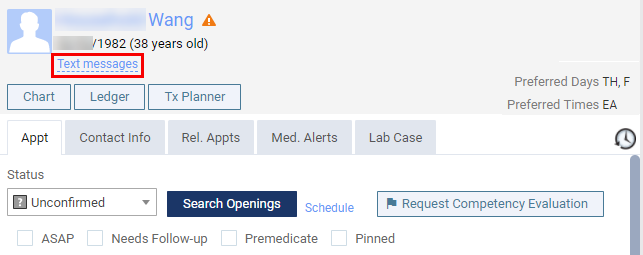
The Messages for [primary contact] window displays.

You can scroll to navigate through the message thread or use the tabs under History to navigate to messages from a specific calendar date.
Each message displays the sender's name above the message, beside the time stamp.
Note: Your sent text messages and any auto-generated messages from the Patient Communication module do not display the sender's name.
If the
button displays while you navigate through a message thread, the primary contact has sent a new message that has not been read yet. To read the new messages, clicktap the button. -
When ready, clicktap Done or the X icon to close the window.
-
-
The Patient Routing panel
-
On the Patient Routing panel, clicktap the Text messages link.
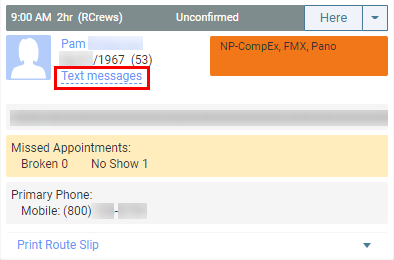
The Messages for [primary contact] window displays.
You can scroll to navigate through the message thread or use the tabs under History to navigate to messages from a specific calendar date.
Each message displays the sender's name above the message, beside the time stamp.
Note: Your sent text messages and any auto-generated messages from the Patient Communication module do not display the sender's name.
If the
button displays while you navigate through a message thread, the primary contact has sent a new message that has not been read yet. To read the new messages, clicktap the button. -
When ready, clicktap Done or the X icon to close the window.
-
-
The Patient Information ribbon
-
On the Patient Information ribbon, clicktap the
 icon.
icon. Tip: If the Patient Information ribbon is not visible, clicktap the arrow button below the Patient Search field.

Notes:
-
If the correct patient is not already selected, use the Patient Search field to access the patient's record.
-
The
icon only displays if the primary contact's number is set as a Mobile type and is a valid phone number. If the patient unsubscribes from receiving text messages, the icon no longer displays.
The Messages for [primary contact] window displays.
You can scroll to navigate through the message thread or use the tabs under History to navigate to messages from a specific calendar date.
Each message displays the sender's name above the message, beside the time stamp.
Note: Your sent text messages and any auto-generated messages from the Patient Communication module do not display the sender's name.
If the
button displays while you navigate through a message thread, the primary contact has sent a new message that has not been read yet. To read the new messages, clicktap the button. -
-
-
Comments
0 comments
Please sign in to leave a comment.