
You can customize the content of an electronic statement (eStatement) communication that is sent to patients via email messages and /or text messages.
Notes:
-
Patient communications are location-specific (each location of your organization has its own communication settings).
-
A patient (assuming they are their own primary contact) receives patient communications only if the patient's status is New or Active. Also, if a new or an active patient has a non-patient primary contact, the primary contact receives patient communications.
To customize an electronic statement communication
How to get to there
-
From the Settings menu, under Patient Care, select Patient Communications.
The Patient Communications page displays.
Note: If the correct location is not already selected, use the Location menu to select it.
-
On a location's Patient Communications page > eStatement tab, review the samples of the email message and text message for the communication and clicktap Edit.
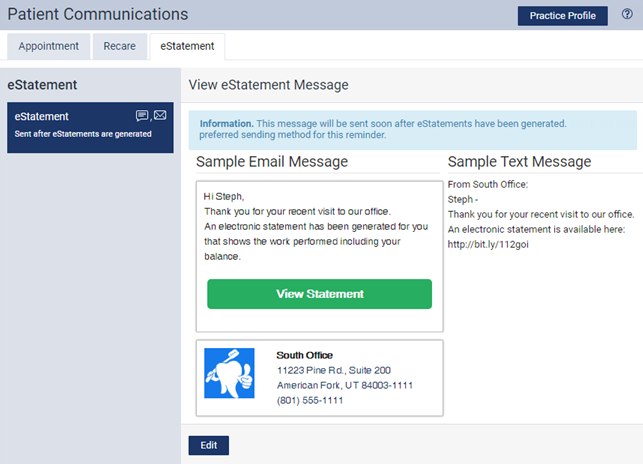
The wizard for editing the eStatement communication displays.
-
Set up the eStatement communication options on the following tabs as necessary:
-
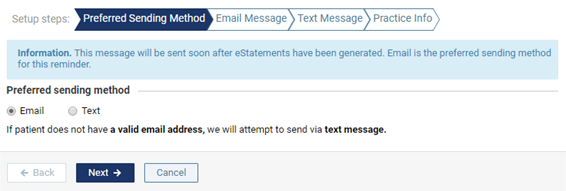
Preferred Sending Method tab
-
Select the format that you prefer to use for the message:
-
Email - Send this message by email.
Note: If a patient receiving the message does not have an email address, Ascend Academic will attempt to send the patient a text message.
-
Text - Send this message by text.
Note: If a patient receiving the message does not have a valid mobile phone number, Ascend Academic will attempt to send the patient an email message.
Important: In accordance with the Telephone Consumer Protection Act (TCPA), to ensure that you send automated text messages to patients only between the hours of 8:00 AM and 9:00 PM, local time zone, any notifications that are initiated between 9:00 PM and 8:00 AM will be delivered at 8:00 AM the next day.
-
-
ClickTap Next to proceed to the next tab of the wizard, or clicktap any tab.
-
-
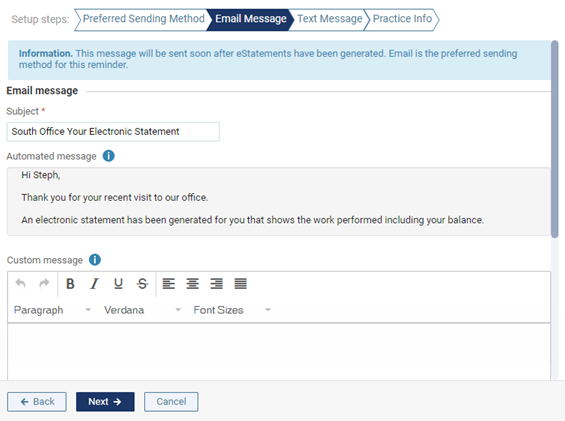
Email Message tab
-
Customize the email message as necessary:
-
Subject - Enter the subject of the email message as you want it to display for patients.
-
Automated message - You cannot change the content, layout, or formatting of the default message. The correct patient names will be inserted accordingly into the message.
-
Custom message - Enter and format any custom text that you want to include in the message.
-
-
ClickTap Next to proceed to the next tab of the wizard, or clicktap any tab.
-
-
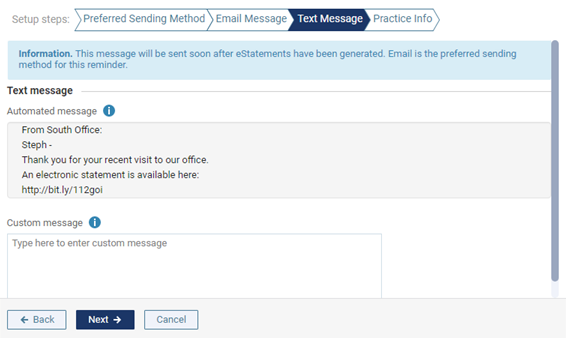
Text Message tab
-
Customize the text message as necessary:
-
Automated message - You cannot change the content, layout, or formatting of the default message. The correct patient names and links to e-statements will be inserted accordingly into the message.
-
Custom message - Enter any custom text that you want to include in the message.
Note: Due to technological limitations with text messaging, a text message that exceeds 160 characters will be sent as multiple messages.
-
-
ClickTap Next to proceed to the next tab of the wizard or clicktap any tab.
-
-
Practice Info tab
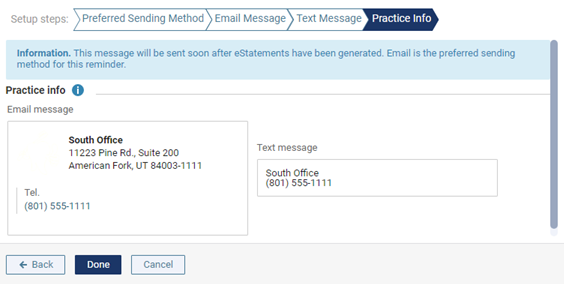
The logo, name, address, and phone number of the selected location display as they will on an email message. The name and phone number of the selected location display as they will on a text message.
-
-
On the Practice Info tab, clicktap Done to save the settings on all the tabs of the wizard.
Comments
0 comments
Please sign in to leave a comment.