
When necessary, you can edit a cash box in the Cash Box custom pick list.
Note: You can manage pick lists according to your security rights for Custom Pick Lists.
To edit a cash box
How to get there
-
From the Settings menu, under Location, select Custom Pick Lists.
The Custom Pick Lists page opens.
-
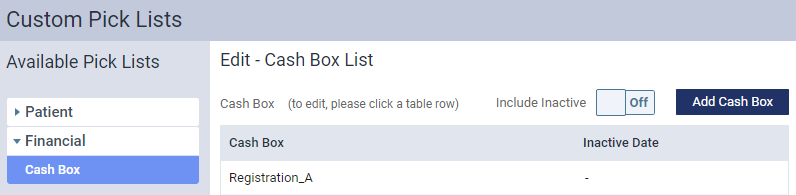
Under Available Pick Lists, clicktap Financial and clicktap Cash Box.
The Edit - Cash Box List panel opens.
-
Select a listed cash box to open the Edit Cash Box window.

-
Edit the fields as necessary:
-
Cash Box: Modify the name.
-
Status: ClickTap the toggle to set it as Active or Inactive.
Note: Inactive Cash Box entries do not display in the Cashbox field in the Enter Payment or Edit Payment windows. For more information, see Posting patient payments or Editing and deleting payments.
-
-
ClickTap Save.
Comments
0 comments
Please sign in to leave a comment.