
When necessary, you can edit a billing type in the Billing Type custom pick list.
Note: You can manage pick lists according to your security rights for Custom Pick Lists.
To edit a billing type
How to get there
-
From the Settings menu, under Location, select Custom Pick Lists.
The Custom Pick Lists page displays.
-
Under Available Pick Lists, clicktap Patient and clicktap Billing Type.
The Edit - Patient Billing Type panel displays.

-
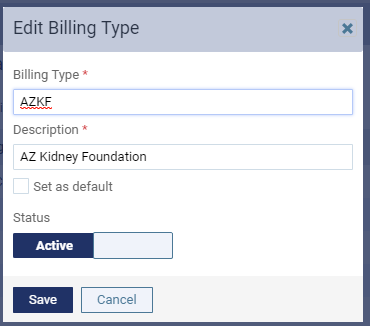
Select a listed billing type to open the Edit Billing Type window.
-
Edit the fields as necessary:
-
Billing Type: Modify the short name.
-
Description: Modify the full name.
-
Set as default: Select the check box to make this the default billing type.
-
Status: ClickTap the toggle to set it as Active or Inactive.
Note: Inactive billing type entries cannot be used.
-
-
ClickTap Save.
Comments
0 comments
Please sign in to leave a comment.