
You can create evaluation forms which will be used by providers to evaluate work done during an appointment. Each form can contain general questions, procedure-specific questions, and patient complexity, which is used to award bonus grade points for working with patients that have complicated conditions. Each question must be assigned an existing grading scheme.
Tip: If you already have an existing evaluation form, it may be quicker to copy the form and modify as necessary.
Note: You can manage evaluation forms according to your security rights for Academic Evaluations.
To create an evaluation form
How to get to there
-
From the Settings menu, under Academic, clicktap Evaluation Forms.
The Evaluations Setup page displays with the Evaluation Forms tab selected.
-
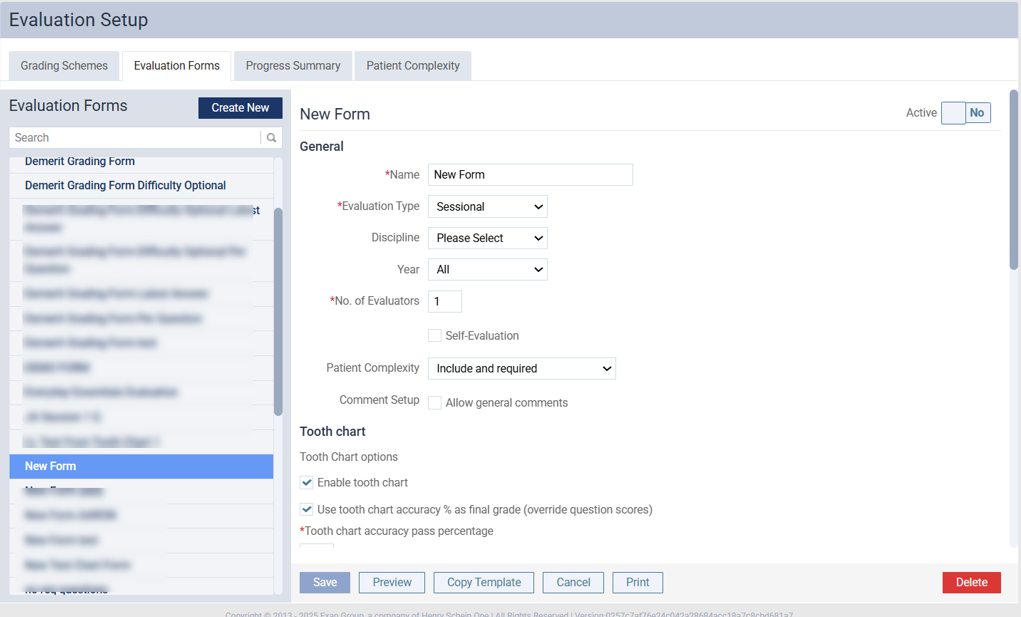
On the Evaluation Setup page > Evaluation Forms tab, clicktap Create New to display a New Form pane.
-
Under General, complete the fields as necessary.
-
Name - Enter the evaluation form's name.
-
Evaluation Type - Select an option from the drop-down list:
-
Sessional - This is a regular assessment form that can be automatically generated when a faculty member approves a procedure during an appointment.
-
Competency - This is a formal assessment form that can be requested manually by a student provider.
-
-
Discipline - Select a discipline from the drop-down list.
-
Year - Select a year this evaluation is applicable.
-
No. of Evaluators - Enter the number of faculty evaluator(s) that need to complete the form.
-
Self-Evaluation - Select the checkbox to require students to perform a self-evaluation.
-
Patient Complexity - Patient complexity allows users to earn bonus grade points when they work with patients with complicated conditions, such as pregnancy and calculus. Select an option from the drop-down list:
-
Include and required - Adds patient complexity as a mandatory section on the form.
Note: This option is selected by default.
-
Include and not required - Adds patient complexity as an optional section on the form.
-
Not include - Removes patient complexity from the form.
Important:
-
Patient complexity displays on evaluation requests for both student and faculty providers but only bonus points from a faculty provider's evaluation are applied to the final grade. Bonus points from a student provider's self-evaluation are only applied to the self-evaluation marks.
-
This feature only applies to demerit grading schemes, as pass/fail grading schemes do not grade by points.
-
-
Comment Setup - Configure the comment feature to allow student and faculty providers to add information in their copy of evaluation requests as comments. Comments on completed evaluation requests can be viewed by both parties.
-
Allow general comments - Select the checkbox to add a field in the form.
-
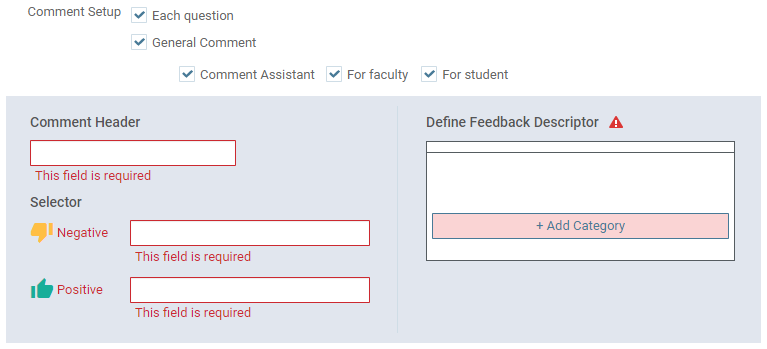
Comment Assistant - Select the checkbox to use the Comment Assistant to generate comments on the form and complete the following fields as necessary:
-
For faculty - Select the checkbox to enable the Comment Assistant for faculty evaluators.
-
For student - Select the checkbox to enable the Comment Assistant for student evaluators.
-
Comment Header - Enter a title for the Comment Assistant that will display on the form.
-
Negative - Enter a name for the negative comment section that will display for each category descriptor.
-
Positive - Enter a name for the positive comment section that will display for each category descriptor.
-
Add Category - ClickTap the button and enter a name for the category.
-
Add Descriptor - ClickTap the button and enter a descriptor for the category.
Note: You must add at least one descriptor for each category.
-
-
-
-
Add Tooth chart as necessary. Users can add a tooth chart in both Competency and Sessional forms.
-
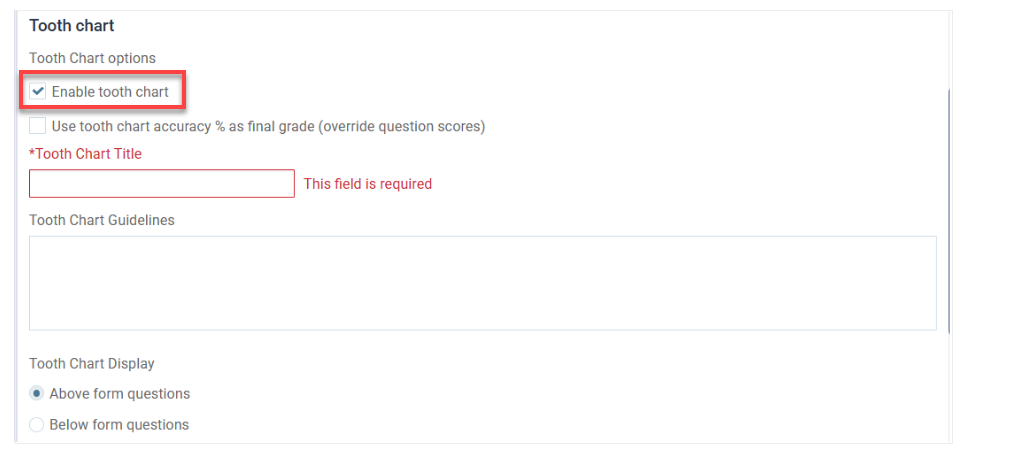
Under Tooth chart select checkbox Enable tooth chart to open the sub-settings.
-
Selecting checkbox Use tooth chart accuracy % as final grade is optional.
-
Under Tooth Chart Title - Enter the title.
-
Under Tooth Chart Guidelines - Describe guidelines for faculty instructors or evaluators of how to utilize the tooth chart.
-
For the Tooth Chart Display feature users can select one of the two options:
-
Above form questions - To add the tooth chart to show before the patient complexity and questions in the template.
-
Below form questions - To add the tooth chart to show after the patient complexity and questions in the template.
-
Note:
The evaluation template with a tooth chart also requires at least one required (mandatory) question in the template. The required question will determine the status of the evaluation. The evaluation is completed when all required questions are answered by the required number of evaluators.
With the addition of the tooth chart, a few more changes are made in the evaluation form settings to reorganize and group related properties.
Failable, Grading Scheme type, Comment setup for each question are moved from the General section to the Questions section.
-
-
Under Questions, complete the fields as necessary.
-
Grading Sceheme Type - Select a Pass/Fail or Demerit Grading grading scheme type from the drop-down list.
Note: If you select Demerit Grading, the Passing Points, Total Points, and Calculation Method fields display at the bottom of the section and a Critical column is added to the questions.
-
Passing Points - Enter a number between 1 and 9999 to indicate the passing grade point out of the total grade points.
Note:
-
This field only displays if the Grading Scheme Type field is set to Demerit Grading.
-
This value must be less than or equal to the Total Points field.
-
-
Total Points - Enter a number between 1 and 9999 to indicate the total grade points. Forms are set to 100 by default.
Note: This field only displays if the Grading Scheme Type field is set to Demerit Grading.
-
Calculation Method - Select an option from the drop-down list to control how Ascend Academic calculates grades for forms that have multiple evaluators:
-
Average Per Evaluator - Calculates the average of the evaluator scores for each question.
Note: This option is selected by default.
-
Average Per Question - Calculates the average of the evaluator scores for each form.
-
Latest Question Per Question - Uses the last evaluator's answer for each question.
Note: This field only displays if the Grading Scheme Type field is set to Demerit Grading.
Important: Regardless of which option is used, the pass/fail grade for the evaluation is determined by the total calculated score when compared to the passing points. Additionally, the evaluation is failed if an evaluator gives a failing grade to any of the critical questions.
Tip: You can use a combination of pass/fail and demerit grading schemes to evaluate the student in different aspects.
-
-
-
Grading Scheme Options - Users can select up to two options here.
-
Use grading scheme default - Select the checkbox to indicate that the evaluation form will use grading scheme default values for each question.
Note: If configured, each question in the evaluation form that uses a grading scheme will default to the set grade when the evaluation is started. Any questions that use a grading scheme without a defined default value will not display default values.
-
Failable - Select the checkbox to allow evaluators to fail students using the form.
Note: If selected, the form must contain at least one required general question.
-
-
Comments - Select the checkbox to set up comments.
-
Allow comments per questions - Users can set up comments at the question level.
-
-
-
Add general questions as necessary.
-
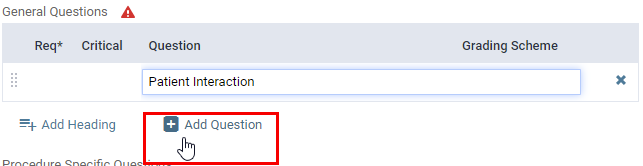
(Optional) Under General Questions, clicktap Add Heading to add a question header.

-
Enter a description or name of the header in the generated field and press Enter.
-
ClickTap Add Question.
-
Set the question fields:
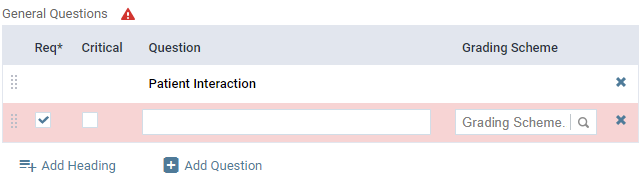
-
Req* - If necessary, deselect the checkbox to make the question optional.
Note: The checkbox is selected by default.
-
Critical - Select the checkbox to make the question critical. Critical questions must be answered correctly for student providers to pass the evaluation. Incorrect answers result in an automatic fail. If selected, the Req* checkbox is automatically selected and deactivated.
Note: This column only displays for evaluation forms that use demerit grading.
-
Question - Enter the question.
-
Grading Scheme - Enter and select a grading scheme from the drop-down list.

-
-
(Optional) Repeat Steps a-d to add multiple headers and/or questions.
-
-
Add procedure-specific questions as necessary.
-
Under Procedure Specific Questions, clicktap Add Question.

-
Set the question fields:

-
Req* - If necessary, deselect the checkbox to make the question optional.
Note: The checkbox is selected by default.
-
Critical - Select the checkbox to make the question critical. Critical questions must be answered correctly for student providers to pass the evaluation. Incorrect answers result in an automatic fail. If selected, the Req* checkbox is automatically selected and deactivated.
Note: This column only displays for evaluation forms that use demerit grading.
-
Question - Enter the question.
-
Code Range - Enter the procedure code range the question applies to.
-
Grading Scheme - Enter and select a grading scheme title from the drop-down list.
-
-
(Optional) Repeat Steps a-b to add multiple questions.
-
-
(Optional) To remove a question header, general question, or procedure-specific question, clicktap the X icon.
-
(Optional) To re-order a question or header, clicktap and drag the
 icon as necessary.
 -
(Optional) To view the form, clicktap Preview.
-
When ready, clicktap Save.
Note: If you have not activated the form, an Activate the form window displays. ClickTap Yes to activate the form.
The new evaluation form displays in the list.
Comments
0 comments
Please sign in to leave a comment.