
Patient complexity is an evaluation feature that allows users to earn bonus grade points when they work with patients with complicated conditions, such as pregnancy and calculus. As students can easily lose points when they work with patients with complicated conditions, this allows them to earn back points to make up for it.
By default, patient complexity has Age Group, Calculus Stages, Periodontitis Stages, and Periodontitis Grading as complicated conditions. If necessary, you can also add and manage custom conditions as additional patient categories.
Important: To apply patient complexity to evaluation requests, you must add patient complexity to the evaluation forms.
To set up patient complexity
How to get there
-
From the Settings menu, under Academic,select Patient Complexity.
The Evaluation Setup page displays with the Patient Complexity tab selected.
-
On the Evaluation Setup page > Patient Complexity tab, review the current complicated conditions and any custom conditions.
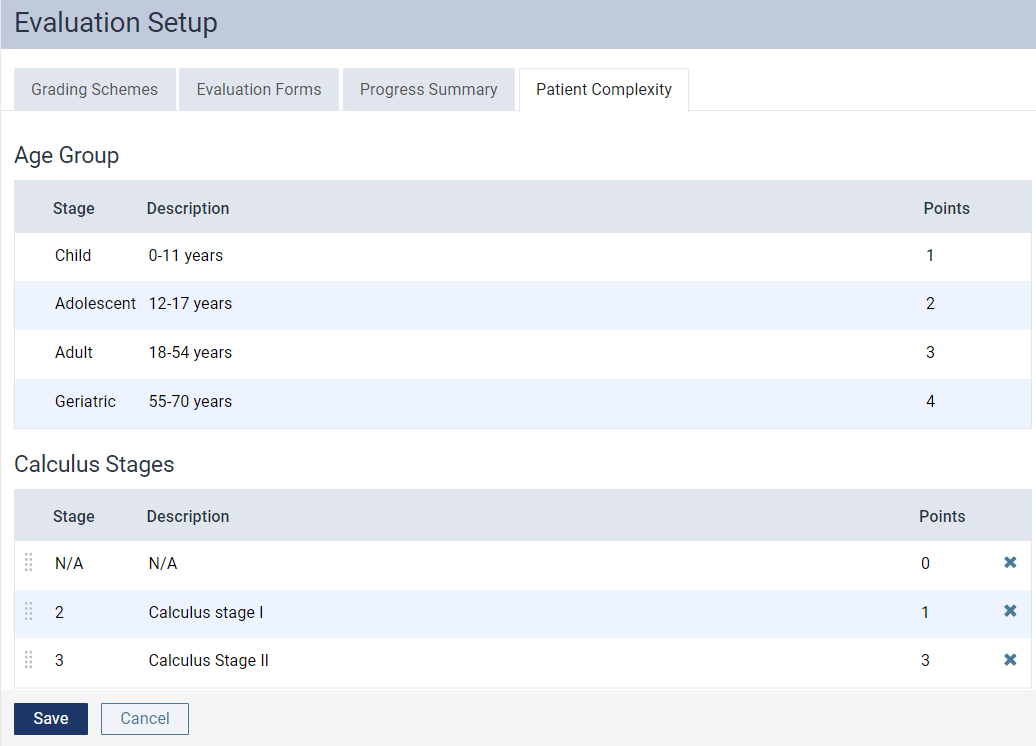
Default conditions are organized into different stages, each with a description and an associated number of bonus points the student provider will earn if they select this stage.
Tip: The description can display as a tooltip of an
 icon when students complete an evaluation request and clicktap the associated icon.
If configured, any custom conditions are listed under Patient Category.
Important: Each location can have a maximum of 10 custom patient categories.

-
Complete any of the following:
-
Edit the Age Group condition.
You can modify the age group stages as necessary. This may include changing the stage description or bonus points.
Note: The Stage field cannot be edited for the Age Group condition.
-
Select a listed stage.
-
In the Description field, modify the description of the stage.
-
In the Points field, modify the number of bonus points the student provider will earn if they select this stage.
-
-
Edit the Calculus Stages condition.
You can modify the calculus stages as necessary. This may include changing the number of stages, the stage name, description, or bonus points, and reordering the stages.
Note: You cannot have more six stages for calculus.
-
Add a stage.
-
ClickTap Add Calculus Stage.
Note: If the button is disabled, you must delete an existing stage.
-
In the Stage field, enter a name for the stage.
-
In the Description field, enter a description for the stage.
-
In the Points field, enter the number of bonus points the student provider will earn if they select this stage.
-
-
Modify a stage.
-
Select a listed stage.
-
In the Stage field, modify the name of the stage.
-
In the Description field, modify the description of the stage.
-
In the Points field, modify the number of bonus points the student provider will earn if they select this stage.
-
-
Delete a stage.
-
Next to a listed stage, clicktap the corresponding X.
-
-
Reorder a stage.
-
Next to a listed stage, clicktap the
 icon and drag to another position.
-
-
-
Edit the Periodontitis Stages condition.
You can modify the periodontitis stages as necessary. This may include changing the stage name, description, or bonus points, and reordering the stages.
-
Modify a stage.
-
Select a listed stage.
-
In the Stage field, modify the name of the stage.
-
In the Description field, modify the description of the stage.
-
In the Points field, modify the number of bonus points the student provider will earn if they select this stage.
-
-
Reorder a stage.
-
Next to a listed stage, clicktap the
icon and drag to another position.
-
-
-
Edit the Periodontitis Grading condition.
You can modify the periodontitis grading stages as necessary. This may include changing the number of stages, the stage name, description, or bonus points, and reordering the stages.
Note: You cannot have more five stages for periodontitis grading.
-
Add a stage.
-
ClickTap Add Periodontitis Grade.
Note: If the button is disabled, you must delete an existing stage.
-
In the Stage field, enter a name for the stage.
-
In the Description field, enter a description for the stage.
-
In the Points field, enter the number of bonus points the student provider will earn if they select this stage.
-
-
Modify a stage.
-
Select a listed stage.
-
In the Stage field, modify the name of the stage.
-
In the Description field, modify the description of the stage.
-
In the Points field, modify the number of bonus points the student provider will earn if they select this stage.
-
-
Delete a stage.
-
Next to a listed stage, clicktap the corresponding X.
-
-
Reorder a stage.
-
Next to a listed stage, clicktap the
icon and drag to another position.
-
-
-
Edit custom (Patient Category) conditions.
You can add and modify custom conditions as necessary. This may include changing the number of categories, the category name, description, or bonus points, and reordering the categories.
-
Add a custom condition.
-
Under Patient Category, clicktap Add Category.
Important: If the Add Category option is disabled, your location already has 10 categories.
A row is added to the Patient Category section.
-
Configure the following fields:
-
Category - Enter the name of the condition.
-
Description - Enter the description of the condition.
-
Points - Enter the number of bonus points the student provider will earn if they select this condition.
-
-
-
Modify a custom condition.
-
Under Patient Category, select a listed condition.
-
Modify the following fields as necessary:
-
Category - Enter the name of the condition.
-
Description - Enter the description of the condition.
-
Points - Enter the number of bonus points the student provider will earn if they select this condition.
-
-
-
Delete a custom condition.
-
Under Patient Category, select a listed condition.
-
ClickTap the corresponding X icon.
-
-
Reorder a custom condition.
-
Next to a listed condition, clicktap the
icon and drag to another position.
-
-
-
-
When ready, clicktap Save.
Comments
0 comments
Please sign in to leave a comment.