
You can quickly create an evaluation form by copying an existing evaluation form and then modifying the copy.
Note: You can manage evaluation forms according to your security rights.
To copy an evaluation form
How to get to there
-
From the Settings menu, under Academic, clicktap Evaluation Forms.
The Evaluation Setup page displays with the Evaluation Forms tab selected.
-
On the Evaluation Setup page > Evaluation Forms tab, select a listed evaluation form to display the form.

-
Click Tap Copy Template to create a copy and display as a new form.

-
In the Name field, enter a new title.
-
Under General, edit the fields as necessary .
-
Under General Questions, modify the headers and/or general questions as necessary.
-
To add a header, clicktap Add Heading and enter the title of the header.
-
To modify a header, select the header, enter a new title, and clicktap outside the field.
-
To remove a header, click the X icon.
-
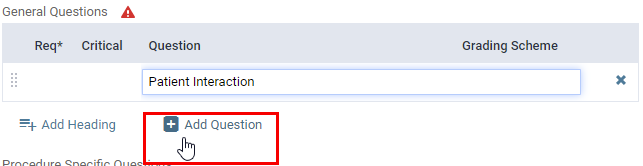
To add a general question, complete the following:
-
Click Tap Add Question.
-
In the generated field, enter the question.
-
In the Grading Scheme field, enter a grading scheme title, and select from the drop-down list.
-
If the question is optional, deselect the Req* checkbox.
-
If the question is critical, select the Critical checkbox.
-
-
To modify a general question, complete any of the following:
-
Select or deselect the Req* checkbox.
-
Select or deselect the Critical checkbox.
-
In the Question field, modify the question.
-
In the Grading Scheme field, enter a new grading scheme title, and select from the drop-down list.
-
-
To remove a general question, clicktap the X icon.
-
-
Under Procedure Specific Questions, modify the questions as necessary.
-
To add a procedure-specific question, complete the following:
-
Click Tap Add Question.
-
In the generated field, enter the question.
-
In the Code Range fields, enter the procedure code range the question applies to.
Note: If the question applies to multiple procedure code ranges, clicktap the icon
 and enter the procedure code range in the generated fields.
 -
In the Grading Scheme field, enter a grading scheme title, and select from the drop-down list.
-
If the question is optional, deselect the Req* checkbox.
-
If the question is critical, select the Critical checkbox.

-
-
To modify a procedure-specific question, complete any of the following:
-
Select or deselect the Req* checkbox.
-
Select or deselect the Critical checkbox.
-
In the Question field, modify the question.
-
In the Grading Scheme field, enter a new grading scheme title, and select it from the drop-down list.
-
-
To remove a procedure-specific question, clicktap the X icon.
-
-
(Optional) To view the form, clicktap Preview.
-
Click Tap Save.
-
When prompted with the Activate the form window, clicktap Yes to activate the form.
-
(Optional) If necessary, print the form.
Comments
0 comments
Please sign in to leave a comment.