
The Proficiency Progress Report is available as part of the evaluation dashboard. It allows you to display user groups and view each member's progress on their completed evaluations (competency and sessional evaluations), based on your location's progress summary categories setup. You can use the report to gain a detailed idea on how students are passing or failing their evaluations.
Important: The full evaluation dashboard only displays for faculty providers and administrators.
To generate the report
How to get there
-
From the Academic menu, clicktap Student Progress.
The Academic Progress page displays.
-
On the Academic Progress page, clicktap the Proficiency Progress tab.

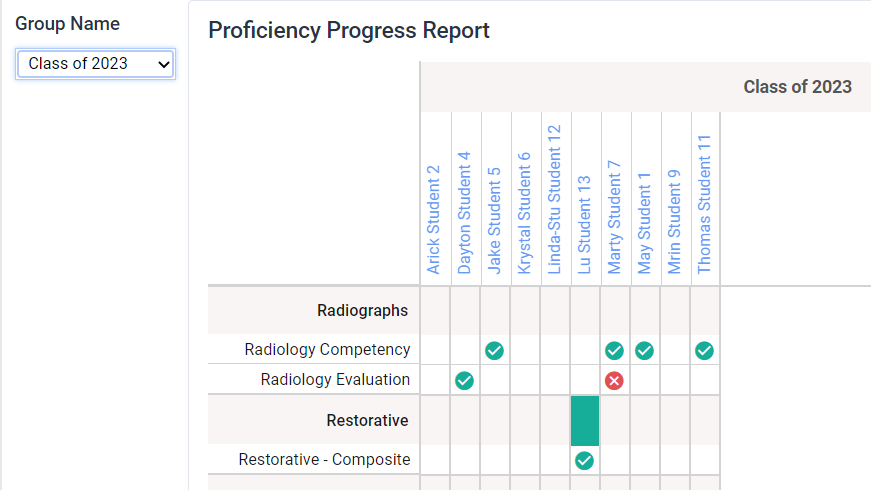
The Proficiency Progress Report displays.
-
Select a user group from the Group Name drop-down list.
The report generates data on the selected user group.
-
(Optional) Set the Completion Date filter to limit student progress to a specified date range.
When set, all progress data such as procedure counts and % of completion rate are recalculated based on the evaluation completion date. Evaluations are considered complete when all required questions have been answered by the required number of evaluators.
-
Review as necessary.
The report uses the following icons:
-
 - Displays when a student passed an evaluation for a specific evaluation form. The icon displays as long as the student passed at least one evaluation, even if they also failed multiple evaluations for the same form.
 -
 - Displays when a student completed and passed all of the evaluations for a specific evaluation form.
 -
 - Displays when a student failed their evaluation for a specific form, and hasn't passed an evaluation for that evaluation form yet.
Tip: You can clicktap an icon to generate a tooltip and view how many times a student has passed/failed their evaluation(s) for that evaluation form.
Note:The tooltip doesn't display for the
icon. 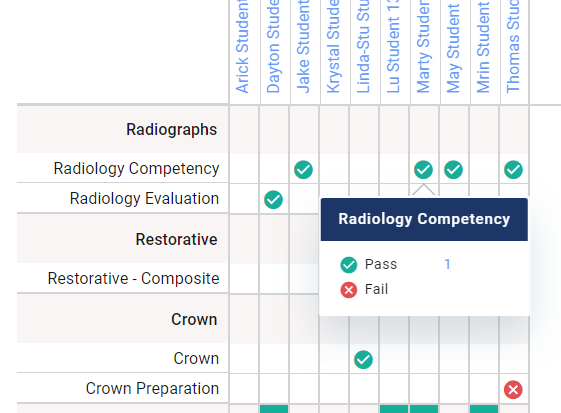
-
Comments
0 comments
Please sign in to leave a comment.