


You can enter a patient's dental and medical insurance information into their patient record.
Note: All required patient information (name, gender, birth date, and address) must be entered before you can attach insurance to a patient.
Important:
-
To attach insurance to a non-subscriber when the subscriber is a patient of your practice, you must have a patient record created for and insurance attached to the subscriber before you attempt to attach insurance to patients of record who are on that subscriber's plan.
-
To attach insurance to a non-subscriber when the subscriber is not a patient of your practice, you must have a patient record (with a status of Non-Patient) created and insurance attached to the subscriber before you attempt to attach insurance to patients of record who are on that subscriber's plan.
To attach insurance to a patient
How to get there
-
From the Patient menu, under General, select Overview.
Note: If the correct patient is not already selected, use the Patient Search field to access the patient's record.
The patient's Overview page displays.
How to get there
-
From the Patient menu, under Insurance, select Insurance Information.
Note: If the correct patient is not already selected, use the Patient Search field to access the patient's record.
The patient's Insurance Information page displays.
-
Complete one of the following:
-
On a patient's Overview page, in the Insurance widget, clicktap Add.

-
On a patient's Insurance Information page, clicktap Add Plan.

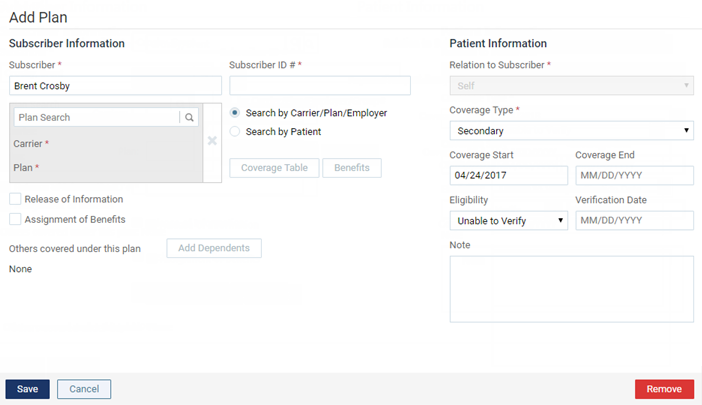
The options for entering insurance information become available.
-
-
Specify the Subscriber.
Complete one of the following:
-
If the patient is the subscriber for the plan that you are going to enter, leave their name in the Subscriber field.
-
If the patient is not the subscriber for the plan that you are going to enter, remove the name from the Subscriber field, enter part of the subscriber's name, and select a subscriber's name. The names of the insurance carrier and plan (or employer) that are attached to the selected subscriber display automatically. Skip Step 3.
-
-
If the patient is the subscriber, search for and select an insurance plan.
-
Select a plan by carrier, plan, employer, or group number.
-
Select the Search by Carrier/Plan/Employer radio button.
-
In the Plan Search field, enter a carrier name, an employer or group plan name, or a group number to narrow the results list and select a plan.

-
-
Select a plan by patient.
-
Select the Search by Patient radio button.
-
In the Plan Search field, enter a patient name to narrow the results list and select the patient with the correct plan.

-
-
Add a new plan.
If there are no results for the search criteria that you enter in the Plan Search field, you can add a new plan.
-
ClickTap Add New Carrier or Plan.

-
In the Select Plan window, complete one of the following:
-
Select an insurance carrier from the list of carriers that have already been added to your practice database.

-
To add an insurance carrier to your organization's database, clicktap Add Carrier, enter a Carrier Name to search for a carrier from the database of supported insurance carriers to narrow the results list and select a carrier. Alternatively, you can enter the name of a carrier that is not supported. For a non-supported carrier, enter the carrier's phone number and extension (if applicable), fax number, and website address. Then, clicktap Save.


-
-
Enter the plan or employer name, group number, insurance carrier's address, phone number and extension of the insurance plan administrator, fax number of the insurance plan administrator, name of the insurance plan administrator (or contact person), email address of the insurance plan administrator, benefit renewal month, source of payment coverage type, PPO contracted fees, and fee schedule of co-payments (for capitation plans only). Also, enter any notes regarding the plan.

-
ClickTap Save.
-
-
-
Set up the rest of the options as needed, such as the subscriber ID, relation to the subscriber, coverage type, and coverage period.
Set up the following options:
-
Subscriber ID # - The ID used to identify the subscriber of the insurance plan on claims submitted to the corresponding carrier. The subscriber ID might not be the same as the subscriber's Social Security number.
-
Release of Information - The subscriber authorizes the release of information to the practice. With this check box selected, "Signature on File" displays in box 36 on insurance claims. With this check box deselected, box 36 is blank.
-
Assignment of Benefits - The subscriber authorizes payments from the carrier to go directly to the provider. With this check box selected, "Signature on File" displays in box 37 on insurance claims, and the carrier will send payments to your practice. With this check box deselected, box 37 is blank, and the carrier will send payments to the subscriber.
-
Relation to Subscriber - For a subscriber, since they are the current patient, Self is selected automatically and cannot be changed. For a non-subscriber, select Spouse, Child, or Other.
-
Coverage Type - The coverage order of the plan (such as Primary or Secondary). The number of items that are available on the list depends on the number of plans that have already been set up for this patient. If there are no plans, only Primary is an option; if there is one plan, Primary and Secondary are options; if there are two plans, Primary, Secondary, and Tertiary are options; and so on.
-
-
Eligibility - If known, select the patient's eligibility status: Unable to Verify, Eligible, or Ineligible. Then, enter today's date (or the date that eligibility was actually checked).
Note: Changing the eligibility status here affects the patient's eligibility status for their appointments on the Insurance Eligibility page and vice versa.
-
Note - Any notes regarding the insurance plan.
-
-
ClickTap Coverage Tables to edit the coverage table for the insurance plan.
-
ClickTap Benefits to edit the deductibles and benefits for the insurance plan. Access to the deductibles and benefits is available only if a subscriber and a plan have been selected. When you attempt to access the deductibles and benefits, if you have not already saved the plan, a message displays and states that you must save the plan before you can access the deductibles and benefits. ClickTap Yes to save the plan and continue.
-
ClickTap Save.
Comments
0 comments
Please sign in to leave a comment.