
A schedule opening is an open appointment time slot. You can search for openings on your calendar where you can schedule appointments.
How to get there
-
From the Schedule menu, select Search for Openings.
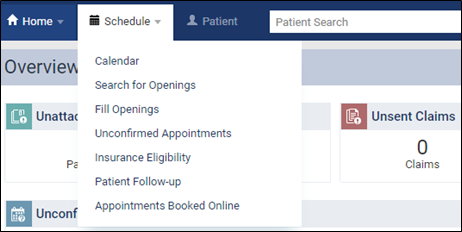
The Search for Openings page displays.
Tip: You can also access the Search for Openings page from the Calendar page > Actions button > Search for Openings option or the Patient menu > Appointments page > Search for Openings button.
To search for available appointment times
-
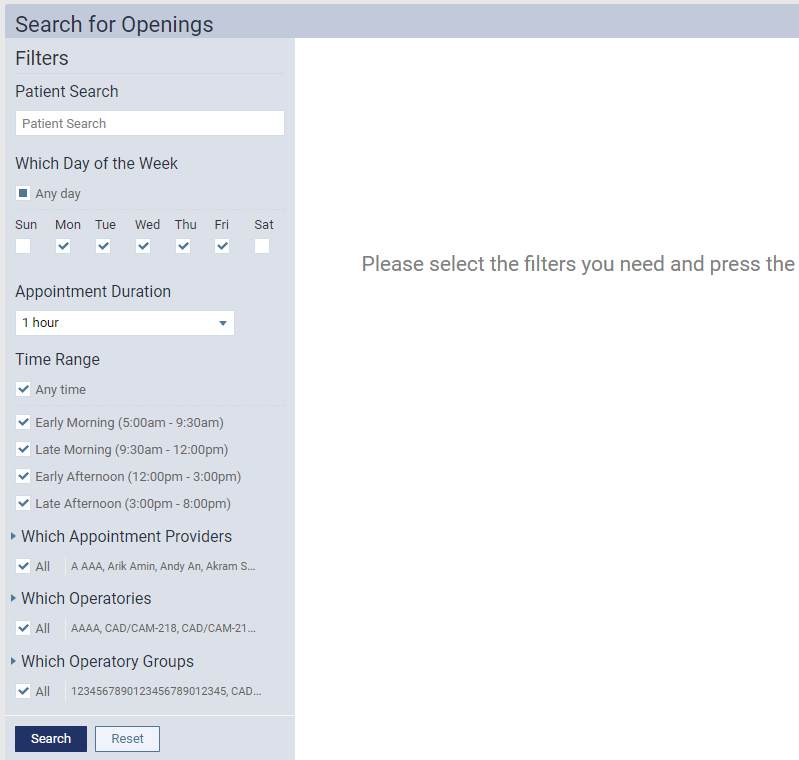
On the Search for Openings page, set the filters as necessary to search for open time slots.
-
Patient Search - Enter the name of the patient to view possible matches and select a name.
Note: If you accessed the Search by Openings page from a patient record, their name will populate in the field by default.
-
Which Day of the Week - Select the check box for each day you want to include or select the Any day check box to include all days of the week in your search.
-
Appointment Duration - From the drop-down, select the appointment length of time that you want to schedule from 10 minutes to 3 hours, in 10-minute increments.
-
Time Range - Select the check box for each time range you want to include (Early Morning, Late Morning, Early Afternoon, and Late Afternoon) or select the Any time check box to include all times in your search.
-
Which Appointment Providers - Select the check box for each provider who you want to include or select All to include all providers in your search.
-
Which Operatories - Select the check box for each operatory that you want to include or select All to include all operatories in your search.
-
Which Operatory Groups - Select the All check box to include all operatory groups in the search or select the check box for each group you want to include.
-
-
ClickTap Search.
The first 10 results that match the specified criteria appear.
Note: When searching using the Which Operatory Groups filter, the results display openings for all operatories in the selected group.
-
(Optional) ClickTap Show Next 10 Items to show the next 10 results.
-
(Optional) To sort the list by Date, Time, Provider, or Operatory, clicktap the appropriate header.
-
Under the Time column, clicktap a blue time range that matches your search criteria to open the Calendar page on the selected date(s).
Comments
0 comments
Please sign in to leave a comment.