
On the Calendar page, you can quickly change a provider's availability for an entire day.
To change a provider availability
How to get there
-
On the Schedule menu, clicktap Calendar.
The Calendar page opens.
-
On the Calendar page, navigate to the day you want to change a provider's availability for.

-
On the View menu, select Provider, select Day or Week, select or clear the check box of any providers as needed to view or hide the corresponding appointments, and clicktap Done.
-
On the Calendar page, locate the column that has the provider whose availability you want to change and complete one of the following:
-
To make an unavailable provider available, clicktap the provider name link at the top of the column and clicktap Make Provider Available for a day.

Note: If the necessary provider column is not visible, the Show only working providers switch may be set to On on the View menu or the provider may not be selected on the View menu.
-
To make an available provider unavailable, clicktap the provider name link at the top of the column and clicktap Make Provider Unavailable for a day.
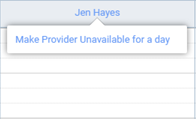
Note: If the provider has appointments scheduled on the day that you are making them not available, a message prompts you to move those appointments to the Pinboard. ClickTap Yes or No.
-
Comments
0 comments
Please sign in to leave a comment.