
You can edit an event as necessary.
Note: When edited successfully, the action is audited on the audit log.
Tip: When you edit an event, a pending message displays on the event to indicate to other logged-in users that it is being edited and cannot be opened.
To edit an event
How to get there
-
From the Schedule menu, select Calendar.
The Calendar page displays.
-
On the Calendar page, clicktap an event.

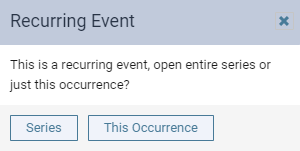
If the event is a recurring event, the Recurring Event window displays.
-
If prompted, clicktap Series to modify the entire series or This Occurrence to modify only this specific event.
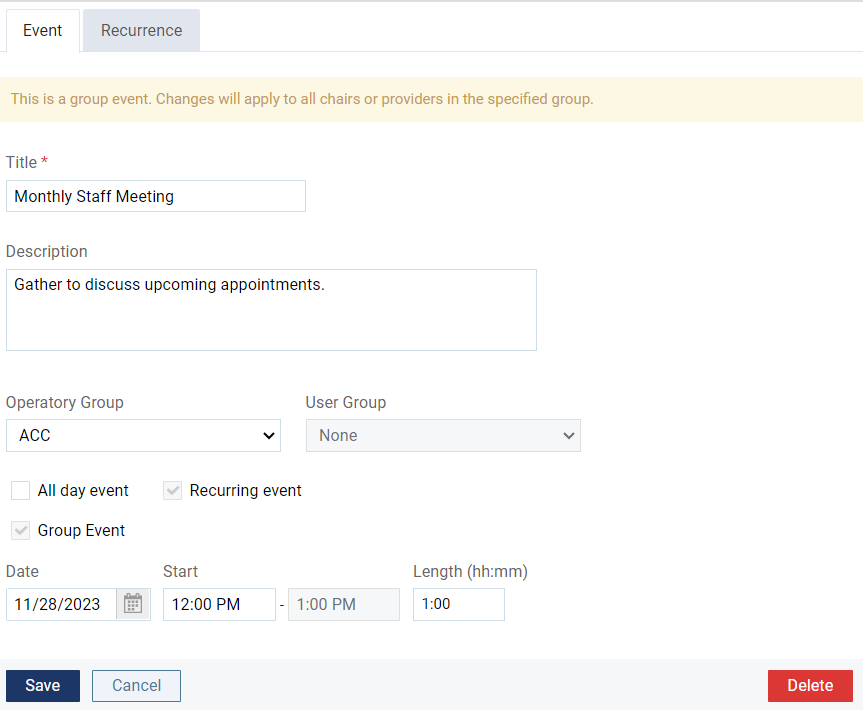
The Event Information panel displays.
-
Modify the following fields as necessary.
-
Title - Edit the event title.
-
Description - Edit the brief description of the event.
-
Operatory or Operatory Group - The field displays as Operatory for single events and as Operatory Group for group events. For single events, select the check box next to each applicable operatory from the drop-down list to set the event locations. For group events, select an operatory group from the drop-down list to set the event location.
-
Provider or Provider Group - The field displays as Provider for single events and as Provider Group for group events. For single events, select a different appointment provider from the drop-down list. For group events, set the participants of the event by selecting a provider group from the drop-down list.
Note: If the event is a group event and set to a specific provider group, the Operatory Group field is disabled and cannot be edited.
-
All day event - Select this check box if the event will last all day.
-
Recurring event - Select the check box to change the event into one that will repeat at regular intervals.
Note: If this is already a recurring event, the check box is disabled and cannot be edited.
-
Group Event - Select the check box to change the event into a group event.
-
Date - ClickTap the field and select a different date.
-
Start - Edit the start time for the event.
Tip: You can enter a time using various formats.
Examples: 08:30, 8:30a, or 8:30 AM; 8a or 8am; 13:30, 1:30p, or 1:30 PM; or 1p or 1pm.
-
Length - Edit the length of the event in hours and minutes format.
-
-
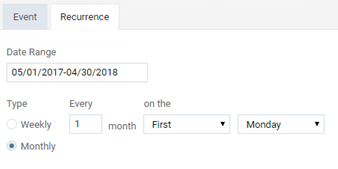
For recurring events, clicktap the Recurrence tab and modify the following options. If you are only editing this occurrence and not the series, skip this step as the tab is disabled.
-
Date Range - Set up a date range to edit when the event will start and stop repeating itself.
-
Type - Specify the event's repeating pattern type:
-
Weekly - For an event that repeats weekly, select this radio button. Set the repeat pattern by defining when it repeats every number of weeks and on what day.
Tip: If the event repeats daily, you can select the All check box to quickly select all days of the week.

-
Monthly - For an event that repeats monthly, select this radio button. Set the repeat pattern by defining when it repeats every number of months and on what day of the week.
-
-
-
ClickTap Save.
Comments
0 comments
Please sign in to leave a comment.