
You can print claims that were created previously but not sent to insurance carriers.
To print a claim
How to get to there
-
From the Home menu, under Insurance, select Unsent Claims.
The Unsent Claims page displays.
How to get there
-
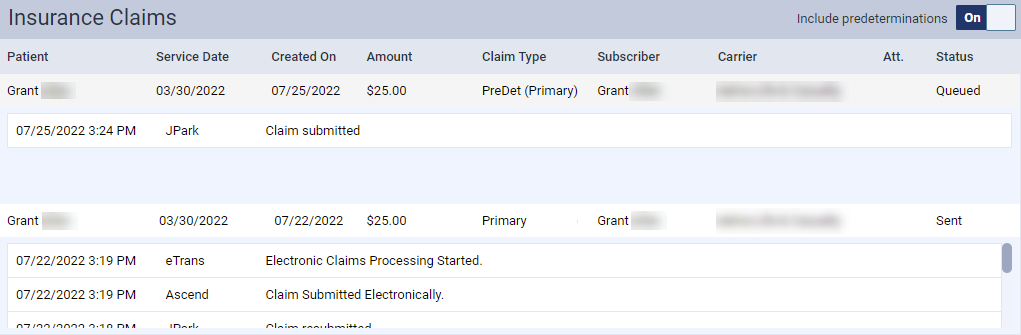
From the Patient menu, under Insurance, select Insurance Claims.
The patient's Insurance Claims page displays.
Note: If the correct patient is not already selected, use the Patient Search field to access the patient's record.
How to get to there
-
From the Patient menu, under Financial, select Ledger.
The patient's Ledger page displays.
Note: If the correct patient is not already selected, use the Patient Search field to access the patient's record.
-
Complete one of the following:
-
On the Unsent Claims page, clicktap a claim.
Tip: Claims that display in green have a Ready status, indicating that all required information is present on the claim.
Important: Claims that display in yellow have a Warning status, indicating that information is missing. Claims that display in red have a Needs Attention status, indicating that required information is missing. You must fix the problems for all claims in yellow or red before attempting to print the corresponding claim. To view and edit claim details, clicktap a claim.

-
On a patient's Insurance Claims page or Ledger page, clicktap a claim with a status of Unsent.
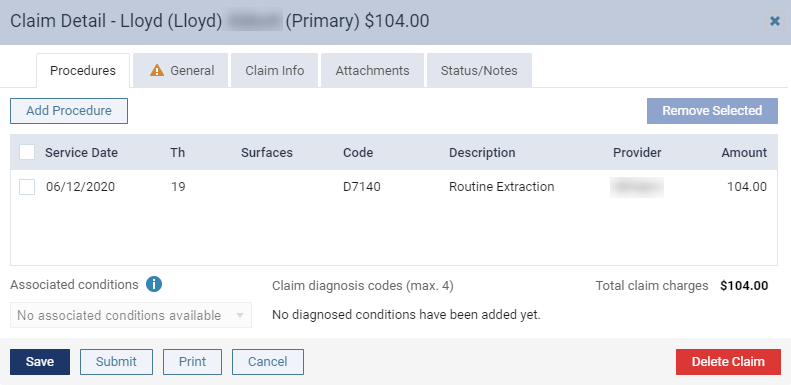
The Claim Detail window displays.
-
-
ClickTap Print.
-
When promoted to confirm, clicktap Print to create a .pdf file of the claim.
Comments
0 comments
Please sign in to leave a comment.