
From the practice dashboard, you can view the procedures that are not attached to claims but for which the corresponding patients have insurance coverage, and then you can create claims for selected procedures as needed.
To create a claim
How to get to there
-
From the Home menu, under Location, clicktap Overview.
The location's Overview page displays.
-
On the practice Overview page (dashboard), clicktap the Unattached Procedures box. This box displays the number of unsent insurance claims and a total of the charges for those claims.
Note: This box is available only if your user account has the Billing Coordinator or Administrator role enabled.

The Unattached Procedures page displays.
-
On the list of patients, leave the first patient selected or clicktap another patient.
Note: Any simulation (sim) patients display with a SIM label.
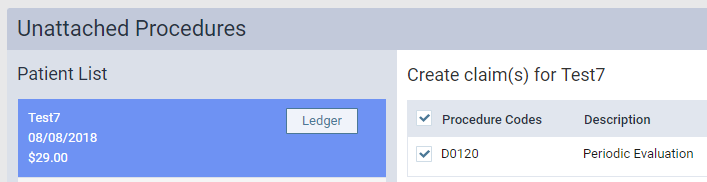
The procedure options become available.

Note: For a procedure to appear, the service date of that procedure must fall within the coverage dates of a patient's insurance plan, and that procedure must be marked as billable to insurance.
-
Select the check box for each procedure you want to include on the claim.
-
ClickTap Create Claim.
Comments
0 comments
Please sign in to leave a comment.