


You can create claims for procedures that are not attached to insurance claims. You can also edit an unattached procedure before you create a claim for that procedure.
Note: ICD-10 diagnosis codes may now be included when submitting a claim to a dental carrier. When conditions are added from the Quick Exam module and completed, they are automatically pre-linked with ICD-10 diagnosis codes.
Tip: You can also create a claim for a patient's procedures while performing a patient checkout.
To create claims
How to get to there
-
From the Home menu, under Insurance, select Create Claims.
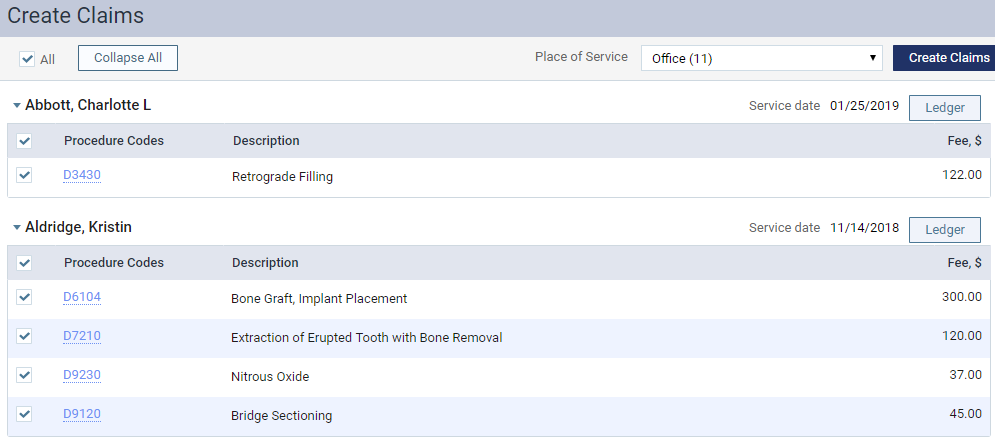
The Create Claims page displays.
-
On the Create Claims page, determine whether you must create claims for all procedures for all listed patients or specific procedures for a specific patient and complete one of the following:
-
If creating claims for all procedures for all patients listed, leave the All check box selected.
-
If creating a claim for specific procedures for a patient, deselect the All check box, and under the appropriate patient's name, select the check box for each procedure you want to include.
Notes:
-
Unattached procedures only display if the procedure service date falls within the coverage dates of a patient's insurance plan, and that procedure is marked as billable to insurance.
-
Any simulation patients display with a SIM label.
Tips:
-
To edit a procedure before creating a claim, clicktap the procedure code link, make the necessary changes, and clicktap Save.
-
To hide the procedures and show only the patient names, clicktap Collapse All.
-
To hide or show the procedures for a specific patient, clicktap the header with that patient's name.
-
To open the patient's Ledger, click Ledger.
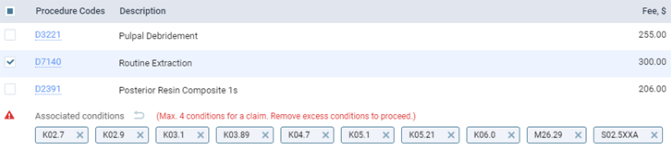
For the selected procedures, the associated diagnoses display.
Note: You can have up to four ICD-10 codes per claim.
-
-
If you have more than four associated diagnoses, you must complete one of the following:
-
To remove ICD-10 codes from the claim, clicktap the X for the corresponding codes.
-
To split the procedures between separate claims, deselect the check boxes for each procedure you do not want on this claim, so you can create the additional claim(s) for those procedures.
Note: Removing ICD-10 codes from a claim does not affect the corresponding procedures. All diagnoses remain attached to their corresponding procedures as currently posted in the patient's ledger and progress notes.
-
-
If there are two, three, or four ICD-10 codes, select the one that you want to be the primary diagnosis.
Tip: Hover your cursor over the ICD-10 code to display the diagnosed condition name.
-
From the Place of Service drop-down, select the place the claims will be created for the selected procedures.
Note: You can change the place of service for a claim later if needed.
-
ClickTap Create Claims.
For each patient with procedures selected, separate claims are created for the service dates of the selected procedures.
Example: Billy has six unattached procedures selected with varying service dates:
-
Procedure 1 - 10/10/2013
-
Procedure 2 - 10/10/2013
-
Procedure 3 - 11/11/2013
-
Procedure 4 - 11/11/2013
-
Procedure 5 - 11/11/2013
-
Procedure 6 - 12/12/2013
Three claims will be created (one for procedures 1 - 2, one for procedures 3 - 5, and one for procedure 6).
-
Comments
0 comments
Please sign in to leave a comment.