
You can edit the details of a location's operatories as necessary.
To edit an operatory
How to get to there
-
From the Settings menu, under Location, select Operatories.
The Operatories page displays.
Note: If the correct location is not already selected, use the Location menu to select it.
-
On a location's Operatories page, select an operatory.
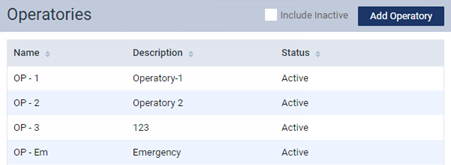
Tip: To select an inactive operatory, select the Include Inactive check box to also display inactive operatories on the page.
The options for editing the operatory become available.
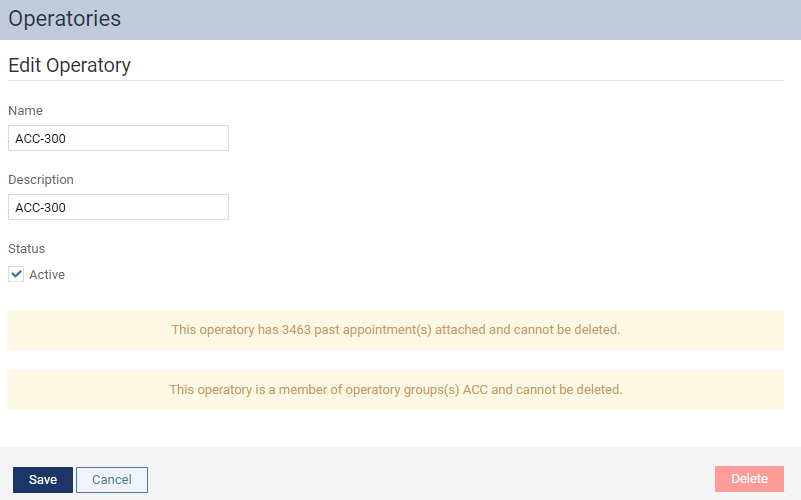
If the operatory is associated with operatory group(s), a message with the name(s) of the operatory group(s) displays.

If the operatory held any appointments in the past, a message with the total number of past appointments displays also.

If the operatory has any future appointments, a message with the total number of future appointments displays instead of the past appointment message.

-
(Optional) ClickTap the message regarding past or future appointment(s) to view more information on them.
The Appointments window displays.
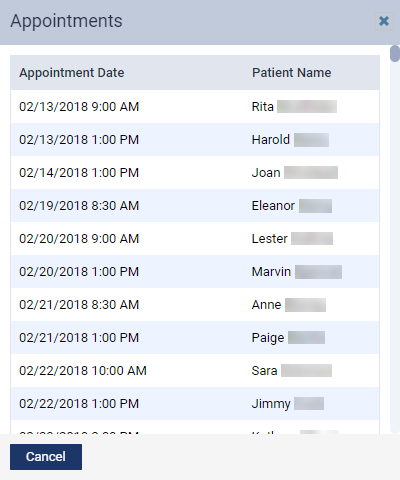
If you clickedtapped the message with past appointments, the window displays a list of past appointments. If you clickedtapped the message with future appointments, the window displays a list of future appointments.
-
Edit the following options.
-
Name - Enter a unique name for the operatory, maximum up to 25 characters in length. This name will display at the top of the corresponding column on the schedule.
-
Description - Enter a description for the operatory, maximum up to 25 characters in length.
-
Status - Select the Active check box to set the operatory as an active operatory. To set it as an inactive operatory, deselect the check box.
Note: You can only schedule appointments and events in an active operatory. You can't use an inactive operatory because it will not display on the schedule, and will not be available for selection from the View menu of the schedule.
-
-
ClickTap Save.
Comments
0 comments
Please sign in to leave a comment.