
You can inactivate operatories that doesn't have any upcoming appointments to prevent future usage. Once inactivated, they no longer display on the schedule and is unavailable as a view option for the schedule.
To inactivate an operatory
How to get to there
-
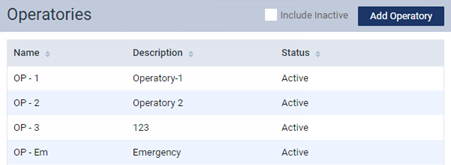
From the Settings menu, under Location, select Operatories.
The Operatories page displays.
Note: If the correct location is not already selected, use the Location menu to select it.
-
On a location's Operatories page, select an operatory.
The options for editing the operatory become available.
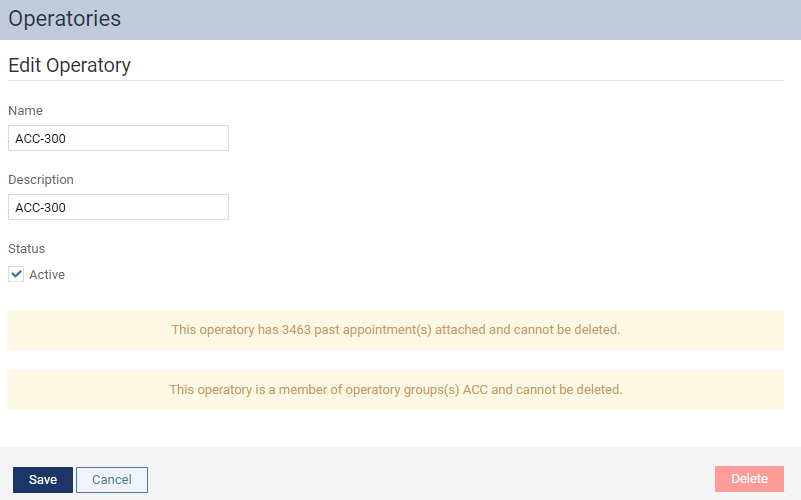
If the operatory is associated with operatory group(s), a message with the name(s) of the operatory group(s) displays.

If the operatory held any appointments in the past, a message with the total number of past appointments displays also.

If the operatory has any future appointments, a message with the total number of future appointments displays instead of the past appointment message.

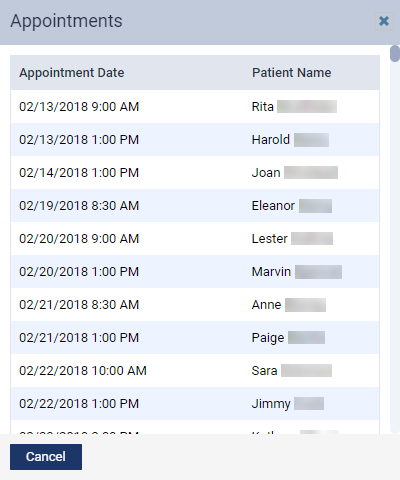
Tip: You can view a list of past or upcoming appointments by clickingtapping the message to generate the Appointments window. If you clickedtapped the message with past appointments, the window displays a list of past appointments. If you clickedtapped the message with future appointments, the window displays a list of future appointments.
-
Under Status, deselect the Active check box. This option is available only if there are no future appointments scheduled in this operatory.
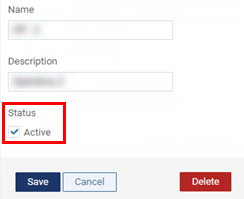
Note: If the operatory has any future appointments, the check box is disabled. If you need to inactivate the operatory, you need to either reschedule or delete the future appointments.
-
ClickTap Save.
Comments
0 comments
Please sign in to leave a comment.