
You can schedule a single or a group event. A single event is an event that is participated by a single provider or operatory, and a group event is an event that is participated by multiple providers or operatories. You can schedule it as a one-time occurrence or recurring event.
Note: When scheduled successfully, the action is audited on the audit log.
To schedule an event
How to get there
-
From the Schedule menu, select Calendar.
The Calendar page displays.
-
On the Calendar page, complete one of the following:
-
ClickTap an open time slot to open the Appointment Information panel and clicktap Create Event.

Tip: You can clicktap a time slot from a provider, operatory, or operatory group's column to specifically schedule an event for them at that specific date and time.
-
From the Actions menu, select Create Event.

The Event Information panel displays.

-
-
Enter the event details as necessary.
Set up the following options:
-
Title - Enter the event title.
-
Description - Enter a brief description of the event.
-
Operatory or Operatory Group - The field displays as Operatory for single events and as Operatory Group for group events. For single events, select the check box next to each applicable operatory from the drop-down list to set the event locations. For group events, select an operatory group from the drop-down list to set the event location.
-
Provider or Provider Group - The field displays as Provider for single events and as Provider Group for group events. For single events, select a different appointment provider from the drop-down list. For group events, set the participants of the event by selecting a provider group from the drop-down list.
-
All day event - Select this check box if the event will last all day.
-
Recurring event - Select the check box if this event will repeat at regular intervals.
-
Group Event - Select the check box if this is a group event.
-
Date - ClickTap the field and select a date.
-
Start - Enter the start time of the event.
Tip: You can enter a time using various formats.
Examples: 08:30, 8:30a, or 8:30 AM; 8a or 8am; 13:30, 1:30p, or 1:30 PM; or 1p or 1pm.
-
Length - Enter the length of the event in hours and minutes format.
-
-
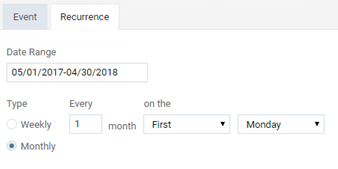
For recurring events, clicktap the Recurrence tab and set up the following options.
-
Date range - Set up a date range to define when the event will start and stop repeating itself.
-
Type - Specify the event's repeating pattern type:
-
Weekly - For an event that repeats weekly, select this radio button. Set the repeat pattern by defining when it repeats every number of weeks and on which days.
Tip: If the event repeats daily, you can select the All check box to quickly select all days of the week.

-
Monthly - For an event that repeats monthly, select this radio button. Set the repeat pattern by defining when it repeats every number of months and on what day of the week.
-
-
-
ClickTap Save.
Comments
0 comments
Please sign in to leave a comment.