
You can create a recare communication, which is an e-mail and text message that are automatically sent to patients regarding their prophy recare. You can create a recare communication by using procedure codes D1110 and D1120.
Notes:
-
Patient communications are location-specific, and each location of your organization has its own communication settings.
-
When a patient confirms an appointment from an email or a text message, the action is audited in the audit log.
To create a recare communication
How to get there
-
If you are not already viewing the correct location, select it from the Location menu.
-
From the Settings menu, under Patient Care, clicktap Patient Communications.
The Patient Communications page displays.
-
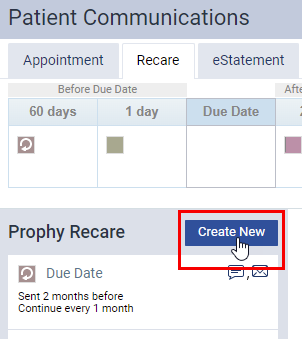
On the location's Patient Communications page > Recare tab, clicktap Create New.
The wizard for creating a new recare communication displays.
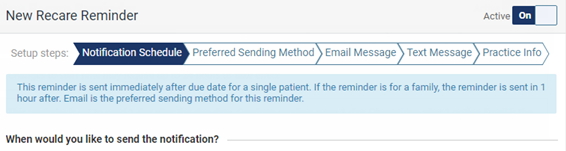
Tip: By default, the new communication is active. To create an inactive communication that won't send messages to patients, set the Active toggle switch to Off.
-
Set up the following tabs as necessary:
-
Notification Schedule

-
Set up the following options:
-
Send Reminder - Decide when the patients will receive the reminder based on their prophy recare's due date. You can decide by specifying the number of days, weeks, or months before or after the due date when the system will send the reminder message.
Tip: To have the reminder sent on the day of the due date, set the reminder to 0 days.
-
Exclude automated message - By default, the toggle switch is set to Off to include the system's automated reminder message with the custom message, which will be added later in the wizard. To only use the custom message, set the toggle switch to On to exclude the automated message.
Note: If set to On, the Email Message and Text Message tabs display with a
 to indicate you must enter a custom message to process this reminder properly. If you leave any of the custom messages blank, you won't be able to create the reminder.
-
Continue sending - By default, the toggle switch is set to Off to only send the reminder message once. If you want the message to be sent multiple times based on the Send Reminder feature, set the toggle switch to On. Then, you can use the enabled options to send a message once every few day(s), week(s), or month(s), and when to stop after sending a specific number of messages.
Example: A reminder is set to be sent 2 weeks before the due date, and to send it weekly until it's been sent 4 times. The 1st one will be sent 2 weeks before the due date, the 2nd one will be sent a week before the due date, and the 3rd one will be sent on the due date. The system won't send the 4th reminder, as the reminder is set to be sent only before the due date.
-
-
ClickTap Next to proceed to the next tab of the wizard, or select the Preferred Sending Method tab.
-
-
Preferred Sending Method
-
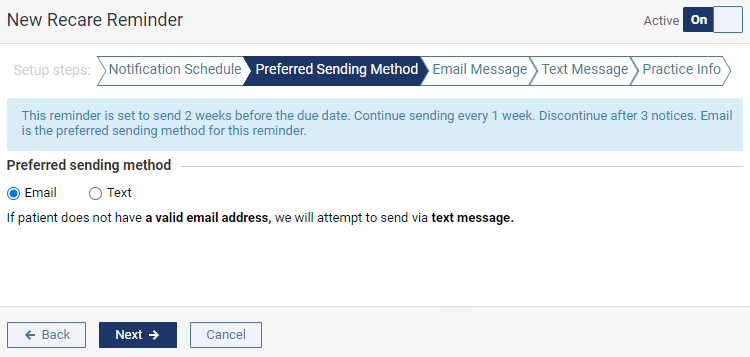
Select one of the following:
-
Email - This option is selected by default to send the recare reminder by e-mail. If a patient doesn't have an e-mail address in their patient record, Ascend Academic will attempt to send the reminder by text.
-
Text - Select to send the recare reminder by text. If a patient doesn't have a valid mobile phone number, the system will attempt to send the reminder by e-mail.
-
-
ClickTap Next to proceed to the next tab of the wizard, or select the Email Message tab.
-
-
Email Message

Tip: The location's e-mail only displays in the automated message if the location has their e-mail address in the system. You can include or exclude the location's e-mail address in the automated message by adding or removing it from the location's information page.
-
Customize the email message as necessary:
-
Subject - By default, the e-mail's subject is set as [Location's name] Appointment Scheduling. If you want something different, enter the desired subject.
-
Automated message - Automated message only displays if you setup the Notification Schedule tab to also include automated messages. If it's set to exclude it, this section doesn't display. If it's included, it can't be modified. The names and the appointment date in the automated message are place holders. The system will replace it with the correct patient names and appointment times accordingly when the reminder is sent to patients.
Sent e-mails display the automated message first, the custom message second, and then a Book Now button. Patients can use the button to schedule an appointment online.

-
Custom message - Enter a custom message if desired. If you're satisfied with the automated message, you can leave this field blank.
-
-
ClickTap Next to proceed to the next tab of the wizard, or select the Text Message tab.
-
-
Text Message

-
Customize the text message as necessary:
-
Automated message - Like the e-mail message, the automated text message only displays if you setup the Notification Schedule tab to also include automated messages. If it's set to exclude it, this section doesn't display. If it's included, it can't be modified. The names and the appointment date in the automated message are place holders. The system will replace it with the correct patient names and appointment times accordingly when the reminder is sent to patients.
Sent text messages display the automated message first, and then the custom message.
-
Custom message - Enter a custom message if desired. If you're satisfied with the automated message, you can leave this field blank.
-
-
ClickTap Next to proceed to the next tab of the wizard, or select the Practice Info tab.
-
-
Practice Info
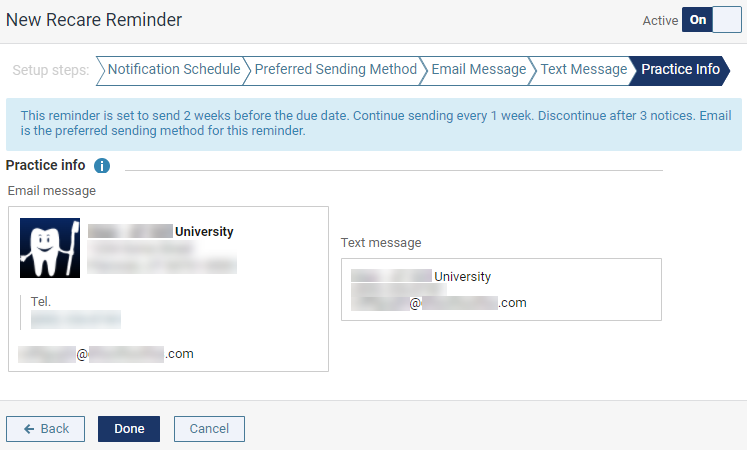
This tab displays the e-mail and text signatures that display at the end of the message. For e-mail, it displays the location's logo, name, address, and phone number based on the location information in the system. For text, it displays the location's name and phone number. If the location has their e-mail address in the system, their e-mail address displays below their phone number.
Tip: If the location's information in the system is incorrect or outdated, you can update them. Once updated, the new information will be applied to all existing communications and their future reminders. The new information won't be applied to e-mail and text messages that were sent before the update.
-
-
On the Practice Info tab, clicktap Done.
Comments
0 comments
Please sign in to leave a comment.