
You can inactivate or reactivate a recare communication, which is an e-mail and text message that are automatically sent to patients regarding their prophy recare.
To inactivate or reactivate a recare communication
How to get there
-
If you are not already viewing the correct location, select it from the Location menu.
-
From the Settings menu, under Patient Care, clicktap Patient Communications.
The Patient Communications page displays.
-
On the location's Patient Communications page, select the Recare tab to view a list of existing recare communications in the system.

-
Select a communication.
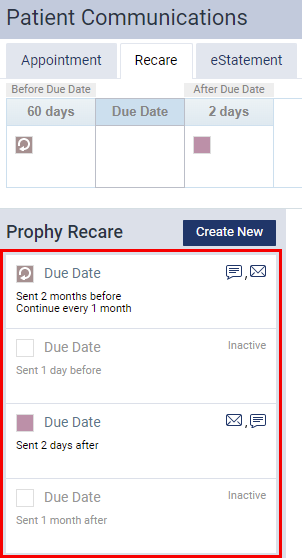
Note: Inactive communications display in grey.
Samples of the corresponding email message and text message display.
Before Due Date

After Due Date

-
Complete one of the following:
-
Set the Active toggle switch to On to reactivate an inactive communication. When prompted with the Mobile number for text messages window, which explains that written consent from patients aren't required for you to send them text messages, clicktap Close.
Tip: If a patient requests not to receive the automated text messages, you can turn them off for that patient, or the patient can text STOP to 45827.
-
Set the Active toggle switch to Off to deactivate an active communication.
-
Comments
0 comments
Please sign in to leave a comment.