
You can view the scheduled and actual production amount of a specific date or week in numerical and graphical form. The production amounts are calculated based on the scheduled procedures that have the Planned, Completed, or Other status. Planned procedures that are not scheduled are excluded from the calculation.
You can view four types of data:
-
Scheduled Gross - Displays the sum of the scheduled charges for the scheduled procedures.
-
Scheduled Net - Displays the sum of the scheduled charges for the scheduled procedures, and is calculated by subtracting any discounts or insurance adjustments that are applied to those procedures. Remaining benefits and deductibles are excluded from the calculation.
-
Actual Gross - Displays the sum of expected incomes without any discounts or adjustments.
-
Actual Net - Displays the cleared amount for a location, and is calculated by subtracting estimated insurance write-offs and applied credit adjustments that affect production from the procedure charges.
To view the scheduled and actual production
How to get there
-
From the Schedule menu, select Calendar.
The Calendar page displays.
-
On the Calendar page, navigate to a day or week.
-
Complete any of the following:
-
View the gross and net production totals of the displayed day or week.
-
ClickTap the View Gross link or View Net link to view the gross or net production amount.
Day View

Week View

Each link displays the scheduled and the actual production amount.

-
(Optional) To view the data as a bar chart, clicktap Production Totals located on the upper-right corner of the page.

The Production Totals window displays.

-
-
View a provider's scheduled and actual net production for the displayed date.
-
Set the view settings to display the necessary provider(s).
-
ClickTap a provider's Show production link.
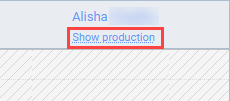
Their production amounts display.

-
(Optional) Repeat Step a to view multiple providers' data.
-
-
-
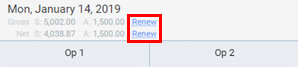
(Optional) Renew the displayed data to view the latest data.
-
For the data displayed on the Calendar page, clicktap Renew.
-
For the Production Totals window, clicktap Refresh Values.

Notes:
-
The Renew link and the Refresh Values button are disabled until a change occurs that affects the displayed data. If they are enabled, it means the data is outdated.
-
If you are only interested in individual providers' actual net production amounts, you do not need to refresh the data, as they are updated automatically.
-
Comments
0 comments
Please sign in to leave a comment.