
You can resubmit a claim that has been rejected by an insurance company due to incorrect or missing required attachments and/or due to missing or insufficient data. A claim that needs to be resubmitted has a status of Rejected by eServices, Rejected by Payer, Unprocessed, Additional Info Requested, or Attachment Error.
Tip: You can access rejected claims from the Unresolved Claims widget on the Overview page.
To resubmit a claim
How to get to there
-
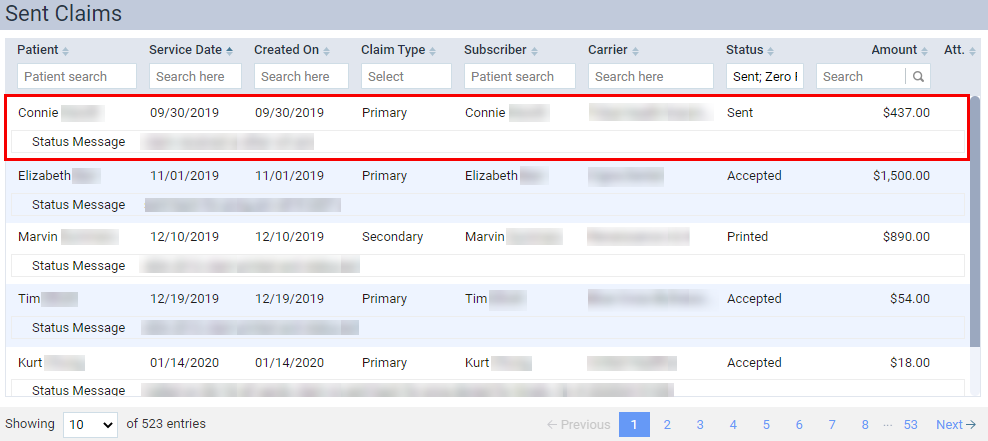
From the Home menu, under Insurance, clicktap Sent Claims.
The Sent Claims page displays.
How to get to there
-
Use the Patient Search field to access a patient's record.
Notes:
-
If the past patient record you accessed since you past logged on is the correct patient's record, you do not need to re-enter the patient's name in the Patient Search field.
-
You can include inactive patients in the search results by setting the Include inactive patients toggle switch to On.
-
-
From the Patient menu, under Insurance, clicktap Insurance Claims.
The patient's Insurance Claims page displays.
How to get there
-
Use the Patient Search field to access a patient's record.
Notes:
-
If the past patient record you accessed since you past logged on is the correct patient's record, you do not need to re-enter the patient's name in the Patient Search field.
-
You can include inactive patients in the search results by setting the Include inactive patients toggle switch to On.
-
-
Complete one of the following:
-
From the Patient menu, under Financial, clicktap Ledger.
-
From the Patient menu, under General, clicktap Overview.
The patient's Overview page displays.
ClickTap the Ledger widget.

The patient's Ledger page displays.
-
-
ClickTap a claim from one of the following pages:
The Claim Detail window displays.

-
Complete one of the following:
-
Resubmit a claim that was rejected due to missing or insufficient data.
You need to enter the original reference number, change any other claim information, and then resubmit the claim.
-
ClickTap the Status/History tab and locate the reason for the rejection, which may be identified by a Document Control Number, DCN, or Claim Reference Number, within the Note of a status history list.

-
Copy and paste the reference number from Step a into the Payer Claim Reference # field.
-
ClickTap the Claim Info tab and change the claim information as necessary.
-
ClickTap Resubmit.
-
-
Resubmit a claim that has missing or insufficient data and has incorrect or missing attachment(s).
You need to enter the payer claim reference number, enter the attachment reference number, change any other claim information, and then resubmit the claim.
-
ClickTap the Status/History tab and locate the reason for the rejection, which may be identified by a Document Control Number, DCN, or Claim Reference Number, within the Note of a status history list.
-
Copy and paste the reference number from Step a into the Payer Claim Reference # field.
-
Locate and copy the attachment reference number in the status update history list.

-
ClickTap the Claim Info tab and change the claim information as necessary.
-
ClickTap Resubmit.
-
-
Resubmit a claim that has incorrect or missing attachment(s).
You need to sent or resend the correct attachment(s) to NEA (National Electronic Attachments) without resubmitting the entire claim, enter the attachment reference number, and then resubmit the attachment(s).
-
ClickTap the Status/History tab and copy the attachment reference number, which may be identified by a DCN, within the Note of a status history list.
-
ClickTap the Attachments tab.
-
Type or paste the attachment reference number from Step a in the Attachment Ref Number field.

-
ClickTap Submit Attachments.
-
-
Resubmit a claim as a replacement for the original claim.
You need to enter the original reference number and then replace the claim.
-
ClickTap the Status/History tab and locate the reason for the rejection, which may be identified by a Document Control Number, DCN, or Claim Reference Number, within the Note of a status history list.
-
Copy and paste the reference number from Step a into the Payer Claim Reference # field.
-
ClickTap Replace Claim.
-
-


Comments
0 comments
Please sign in to leave a comment.