
Procedure codes represent the services that you render and products that you sell. You can edit procedure codes that have not been posted to or charted in patients' records.
Tip: If you want to edit a procedure code that is attached to patients' record, you must first delete all instances of that procedure from patients' records. Alternatively, you can create an alias code (a procedure code followed by a period and an alphanumeric suffix) for the procedure code that you want to edit and begin using the alias code from that point on instead.
Note: Procedure codes are set up at the organization level, but locations can each have different fees for a given procedure code. However, if you change that procedure code's fee at one location, that change will be reflected in that location's preferred fee schedule, which is accessible across the organization.
To edit a procedure code
How to get to there
-
If you are not already viewing the correct location, select it from the Location menu.
-
From the Settings menu, under Production, clicktap Procedure Codes & Conditions.
The Procedure Codes & Conditions page displays.
-
On a location's Procedure Codes & Conditions page, select a procedure code.
Notes:
-
To quickly locate a procedure, enter a code or description in the Search For Specific Procedure field.
-
You can also filter the list of procedure codes to view all, only favorites (most commonly used procedures), only active, or only inactive.

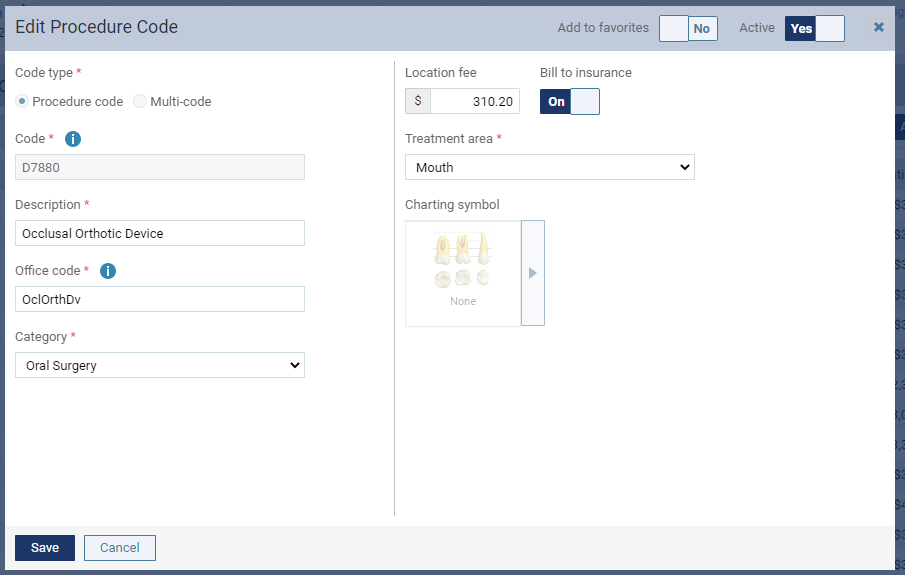
The Edit Procedure Code window displays.
-
-
Modify the description, office code, category, amount, treatment area, and other fields as necessary.
Set up the following options:
-
Description - Enter the standard ADA description or a custom description for the procedure.
Note: Changing the description of a procedure code affects the description for the same procedure code in the location's default fee schedule (the fee schedule that gets created automatically for each location in your organization).
-
Office Code - Enter the shorthand version of the ADA code description or a custom code for this procedure.
-
Category - Select the ADA Procedure Code category that this procedure belongs to. There is also an option to specify that this procedure is a product that will not be billed to insurance.
Examples: A power toothbrush or a home bleaching kit.
-
Add to favorites - Favorite procedures are the ones that you use most commonly. Set this toggle to On to mark this procedure as a favorite so that you have quick and easy access to the procedure when you are charting procedures. Favorites have a yellow star next to them in the list of procedure codes on the Procedure Codes & Conditions page.
-
Active - To make the procedure available for selection wherever procedure codes can be selected, set the toggle to Yes. To make the procedure unavailable, set the toggle to No.
-
Bill to insurance - To flag the procedure as being billable to insurance by default when posting the procedure, set the toggle to On. If the procedure should not be billable to insurance by default, set the toggle to Off. Even though this option is available for an alias procedure code or a non-standard code, some carriers may reject that procedure on a claim or may reject the entire claim due to the presence of an unrecognized procedure code, so turn this option on with care if the procedure code is not standard.
-
Location fee - Enter the default amount that you charge at this location for this procedure.
Note: Changing the fee of a procedure code affects the fee for the same procedure code in the location's preferred fee schedule, which is accessible across the organization.
-
-
.
-
You cannot change the treatment area for a retainer procedure code (an alias procedure code with a .RET suffix).
-
-
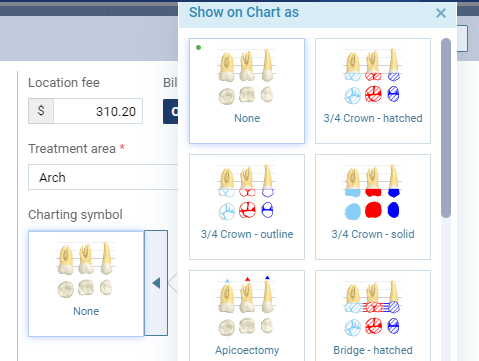
Charting symbol - According to the selected Treatment area, select how you want this procedure to be charted (only the symbols that are applicable for the selected treatment area display in the list):
-
Tooth, Quadrant, Range, Sextant, or Arch - None, 3/4 Crown - hatched, 3/4 Crown - outline, 3/4 Crown solid, Apicoectomy, Bridge - hatched, Bridge - outline, Bridge retainer crown - hatched, Bridge retainer crown - outline, Crown - hatched, Crown - outline, Crown solid, Denture - hatched, Denture - outline, Denture - solid, Extraction, Implant - blade, Implant - cylinder, Pins, Posts, Root canal, Sealant, Bridge - solid, or Bridge retainer crown - solid.
-
Surface - None, Surface restoration - dotted, Surface restoration - hatched, or Surface restoration - solid.

-
Root - None, Apicoectomy, or Root canal.

-
Mouth - Not applicable.
-
Require clinical note - To require a clinical note for this procedure when it is completed, set the toggle to Yes. With the toggle set to Yes, completing this procedure affects the Clinical Note Tasks widget > Not Entered count on a location's Overview page and consequently which patients display on the Clinical Note Tasks page > Not Entered tab. With the toggle set to No, completing this procedure does not affect the count of clinical notes that were not entered but should have been.
Tip: Most procedure codes in the Product category should not require a clinical note.
-
Require treatment info - If the Code corresponds to an orthodontic procedure (D8001-D8999), this toggle displays. To require the placement date and remaining months for this procedure to be entered when the procedure is completed, set the toggle to Yes.
-
With the toggle set to Yes, if the treatment information is missing for this procedure, Ascend Academic does the following to remind you to enter the treatment information:
-
When you attempt to complete the procedure, a pop-up message displays. To proceed, you must enter the treatment information.
-
When you attempt to create a claim for the procedure a warning message displays. To include the procedure on a claim, you must first enter the treatment information.
-
With the toggle set to No, the options to enter the treatment information are not available for this procedure.
Tip: Most procedure codes in the Product category should not require treatment information.
-
-
ClickTap Save.
Comments
1 comment
Hi,
I know how to put codes in and change them but ascend won't allow the changes to show on the end of day deposit for April 21, 2025.
Please sign in to leave a comment.