
You can chart completed, planned, and existing treatment in a patient's clinical chart.
Note: A completed procedure charted in the clinical chart displays in the clinical record and financial ledger; however, a treatment-planned procedure or existing condition does not display in the financial ledger.
Tip: Once added, you can easily edit a procedure to link conditions to the procedure to help reduce the number of rejected insurance claims due to missing condition codes.
To chart treatment
How to get there
-
Use the Patient Search field to access a patient's record.
Notes:
-
If the last patient record you accessed since you last logged on is the correct patient's record, you do not need to re-enter the patient's name in the Patient Search field.
-
You can include inactive patients in the search results by setting the Include inactive patients toggle to On.
-
-
From the Patient menu, under Clinical, clicktap Chart.
The patient's clinical record displays with the Chart tab selected.
-
On a patient's clinical record > Chart, select one or more teeth, quadrants, or no teeth if charting a full mouth procedure.

-
ClickTap Add Procedure to display the Add Procedure window.
-
ClickTap the correct procedure tab:
-
Tx Plan: If selected, the procedure will display as a planned procedure that has not yet been completed.
-
Completed: If selected, the procedure will display as a procedure completed today.
-
Existing: If selected, the procedure will display as an existing procedure completed at another practice.
Note: If you require approval to add a completed procedure, the Completed tab is not available.

-
-
If not already chosen, select the correct provider for this charting session from the drop-down list.

-
Search for and select a procedure using one of the following methods:
-
ClickTap in the Search field, and enter part of the ADA description or code to narrow the results and select an entry.
Example: "ama" for Amalgam 1 Surface or "21" for D2140.

-
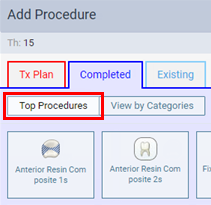
ClickTap Top Procedures to view common procedures types for the selected tooth, arch, quadrant, or full mouth.
-
ClickTap View by Categories to view the procedure categories list and click a category name to view all grouped procedures for the selected tooth, arch, quadrant, or full mouth.

-
-
If prompted with the Select Surfaces window, select the correct surfaces for each tooth by completing one of the following and clicktap Done.
-
Select all applicable surface buttons.
-
Under Surface Combinations, click tap a button to select common surfaces combinations.
-
Set the Exclude tooth toggle to On.
Note: This only displays if you have multiple teeth selected.

Tips:
-
To navigate between teeth,clicktap a Th or clicktap Back and Next.
-
To set Class 5 to On, at least one of the appropriate Surfaces must be selected: mesial, distal, lingual, or facial/buccal.
-
Note: The listed procedures depend on which sites were selected.
Example: If no teeth are selected and you search for "amalgam," no procedures will display in the list, in the top procedures or within a category.
Note: If you cannot find the necessary procedure, contact an administrator to confirm the correct procedure has been made available.
Note: The charge that is used for a charted or scheduled procedure is the fee from the provider's fee schedule (or if not applicable, the default fee for the procedure code).
Comments
0 comments
Please sign in to leave a comment.