
You can inactivate a procedure that you do not want to use so that it does not appear wherever procedure codes can be selected. Also, an inactive procedure code for a given location is not available for editing in fee schedules for that location.
Important: If you inactivate a procedure code that is part of any multi-codes, that procedure code will be removed from those multi-codes, and any of those multi-codes that are for bridges will be inactivated.
Notes:
-
After you inactivate a procedure code that is part of any future scheduled appointment, you can still post that procedure code.
-
If you have an inactivate procedure code for a specific treatment area (such as a 3-surface amalgam), and if, when charting or posting, you choose a procedure code that is the same procedure as the inactive procedure code but has a different treatment area (such as a 1-surface amalgam), and then if you select a treatment area that matches the inactive procedure code (3 surfaces), the inactive procedure code will be used.
To inactivate a procedure code
How to get to there
-
If you are not already viewing the location that has a procedure code that you want to inactivate, select that location from the Location menu.
-
From the Settings menu, under Production, clicktap Procedure Codes & Conditions.
The Procedure Codes & Conditions page displays.
-
On a location's Procedure Codes & Conditions page, select a procedure code.
Notes:
-
To quickly locate a procedure, type a code or description in the Search For Specific Procedure field near the top of the page.
-
You can also filter the list of procedure codes to view all, only favorites (most commonly used procedures), only active, or only inactive.

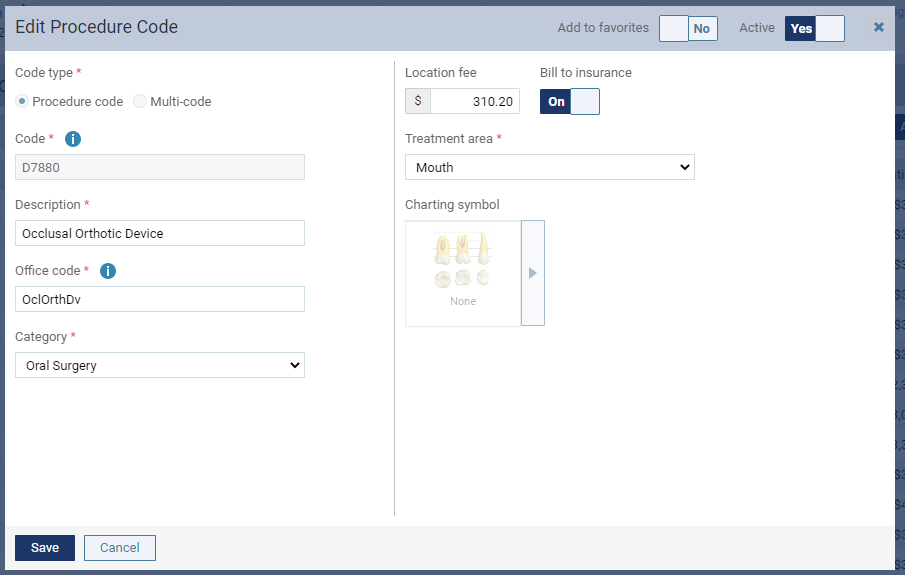
The Edit Procedure Code window displays.
-
-
Set the Active toggle to No.
-
ClickTap Save.
-
When prompted to confirm, clicktap Inactivate.
Comments
0 comments
Please sign in to leave a comment.