
After you have added an insurance carrier to your organization's database, you can create a new insurance plan and attach it to that insurance carrier.
Tip: You can also attach insurance plans to insurance carriers when you are attaching insurance to patients.
To add a plan to an insurance carrier
How to get to there
-
From the Home menu, under Insurance, select Carriers.
The Insurance Carriers page displays.
-
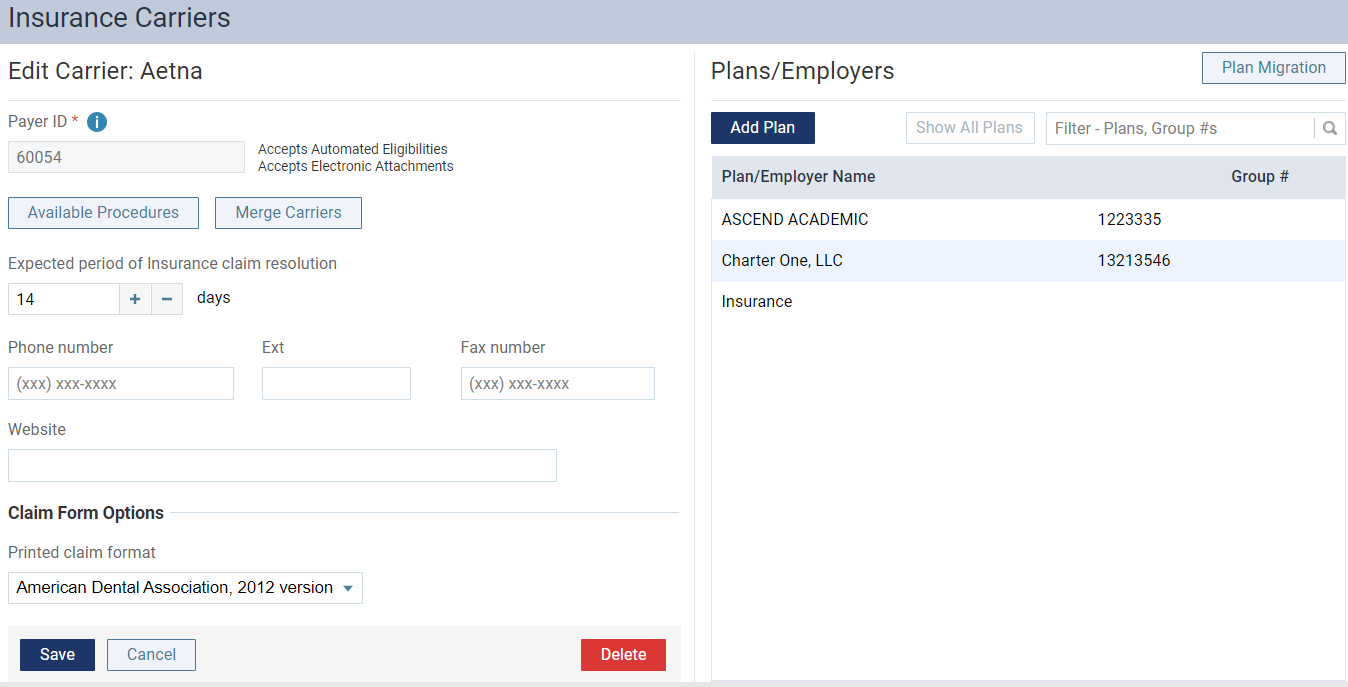
On the Insurance Carriers page, select an insurance carrier.
Tip: To help you locate an insurance carrier quickly, in the Filter field, type part or all of a carrier's name, plan/employer, or group number to filter the carrier list so that it displays only those carriers that match what you enter.

The options to edit the insurance carrier become available.
-
Under Plans/Employers, clicktap Add Plan.

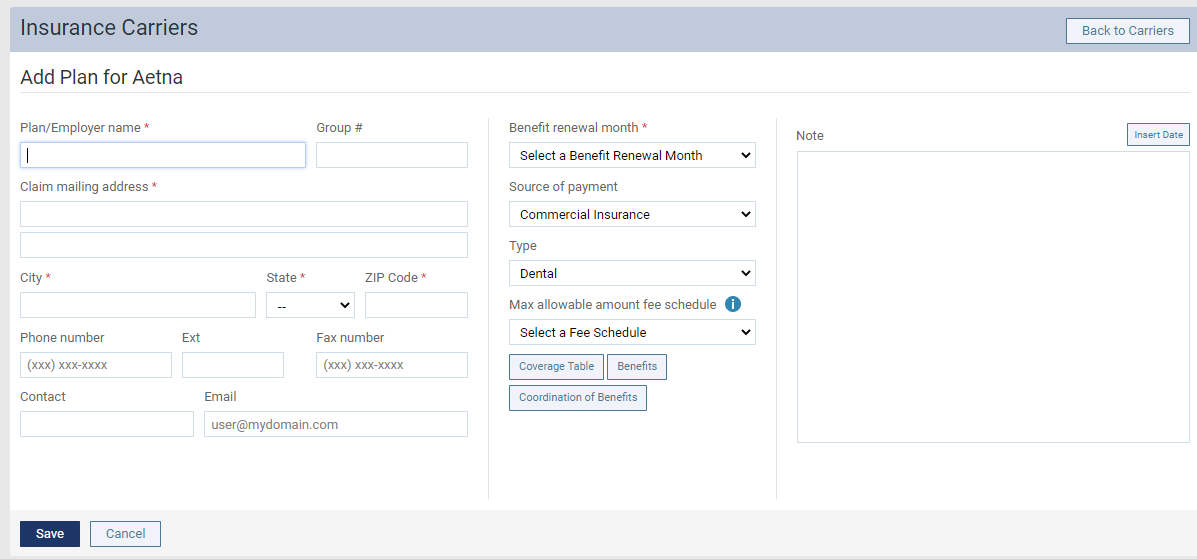
The options for adding the insurance plan become available.
-
Enter the plan or employer name, and set up the other options as necessary.
-
Plan/Employer Name - The name of the insurance plan.
-
Group # - The group plan number.
-
Claim mailing address - The address where claims for the insurance plan are mailed.
Note: ZIP Codes must be nine digits.
-
Phone - The insurance plan administrator's contact phone number and extension (if applicable).
-
Fax Number - The fax number of the insurance plan administrator.
-
Contact - The name of the insurance plan administrator.
-
Email - The insurance plan administrator's email address.
-
Benefit Renewal Month - The month that the insurance plan's benefits reset.
-
Source of Payment - The type of insurance company that will remit payment: CHAMPUS, Blue Cross/Blue Shield, Commercial Insurance, Medicare Part B, or Medicaid.
Note: Patients whose insurance plans have "Medicaid" as the Source of Payment will not receive billing statements, as it is illegal in many states to send billing statements to Medicaid patients.
-
Type - The plan covers dental or medical procedures.
-
PPO Contracted Fee Schedule - (Use for PPO plans only.) The schedule of allowed charges for the insurance plan. The selected fee schedule will be used to determine a patient's portion and the recommended write-off.
Important: For each provider (and each location that is set up as a billing provider for claims) who participates with this insurance plan, in that provider's user account (or that location's settings), you must select this carrier in the Contracted With section.
-
CAP Plan Fees - (Use for capitation plans only.) The selected fee schedule will be used to determine a patient's co-pay and the recommended write-off.
-
Coverage Tables - The coverage table for the plan. You can change the default deductible type and coverage percentage each procedure code range in the coverage table. This window is available only if a Plan/Employer Name has been entered.

Note: You can also add exceptions, but currently, only the "not covered" exception in coverage tables is used by Ascend Academic to automatically calculate insurance estimates.
-
Benefits - The deductibles and benefits for the plan. You can type the required deductible amounts for each deductible type and type the maximum benefits allowed. Access to this window is available only if a Plan/Employer Name, Address, City, State, and ZIP Code have been entered.

-
Note - A note that is specific to this insurance plan. You can enter text, such as information from an EOB or other document from the insurance carrier. Also, you can insert a date if needed. The note is accessible from all patient records that have this insurance plan attached.
-
-
ClickTap Save.
Comments
0 comments
Please sign in to leave a comment.