
Unlinking Fee Schedules From Insurance Plans
You can quickly unlink a fee schedule from multiple insurance plans from one place so you don't have to edit each insurance plan one at a time to remove the fee schedule association.
Important:
-
Unlinking a fee schedule from a plan will affect existing insurance estimates.
-
The only way to relink a fee schedule is to edit the applicable insurance plans, reselecting the fee schedule, one at a time.
Note: Unlinking a fee schedule requires the "Edit Fee Schedules" and "Edit Insurance Plans" security rights.
To unlink a fee schedule from insurance plans:
-
On the Settings menu, under Production, select Fee Schedules.
The Fee Schedules page opens.
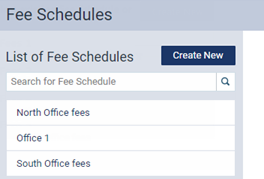
Note: To search for a fee schedule, begin typing part of the name of a fee schedule in the Search for Fee Schedule box, and continue typing as needed to narrow down the list.
-
Select a fee schedule.
The options for editing the fee schedule become available.
-
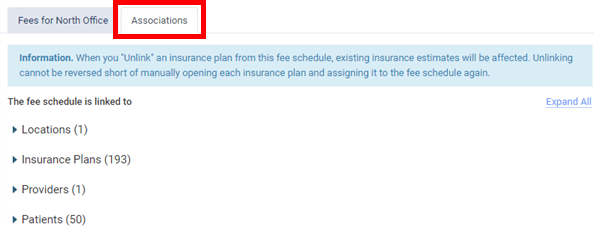
Select the Associations tab.
-
Expand the Insurance Plans category.
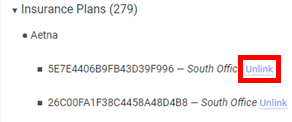
The associated plans are grouped by carrier. The location that is associated with each plan appears next to the plan name. Also, an Unlink link appears after each plan.
-
Click the Unlink link of each plan you no longer want this fee schedule to be associated with.
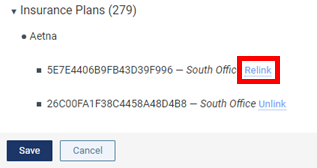
Note: If you want to undo the unlinking of any plan before you click Save, you may do so by clicking its Relink link.
-
Click Save.
A confirmation message appears.
-
Click Unlink & Save.
Note: The unlinking of the fee schedule is recorded in the audit log.
Fee Schedule Procedure Search and Inactive Filter
While you are adding or modifying a fee schedule in Ascend Academic, you can now search for a procedure in the fee schedule, and you can show and hide inactive procedures.
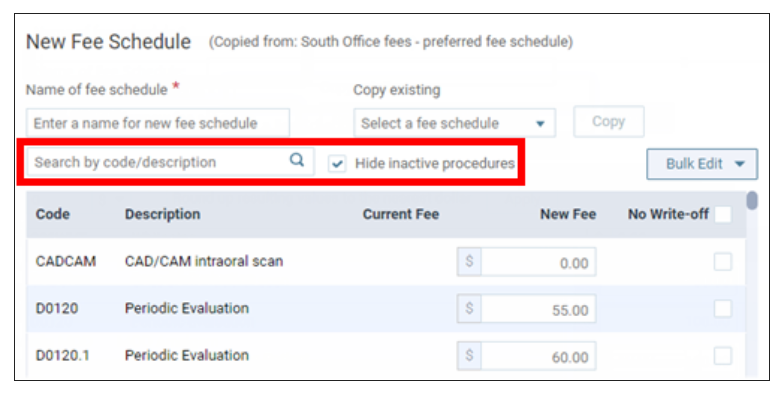
To search for a procedure, begin typing a code or description in the Search by code/description box, and continue typing as needed to narrow down the list of procedures.
The Hide inactive procedures checkbox is selected by default, so only active procedures are shown. To temporarily show inactive procedures too, clear this checkbox (the checkbox reverts back to being selected the next time you access the Fee Schedules page and select a fee schedule).
Comments
0 comments
Please sign in to leave a comment.