
From Ascend Academic, you have access to a large database of supported payers. You can add any of these supported insurance carriers to your organization's database. You can also add insurance carriers that do not appear in the database of supported insurance carriers to your organization's database.
Tip: You can also add insurance carriers when you are attaching insurance to patients.
To add an insurance carrier
How to get to there
-
From the Home menu, under Insurance, select Carriers.
The Insurance Carriers page displays.
-
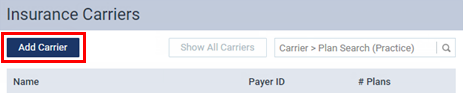
On the Insurance Carriers page, clicktap Add Carrier.
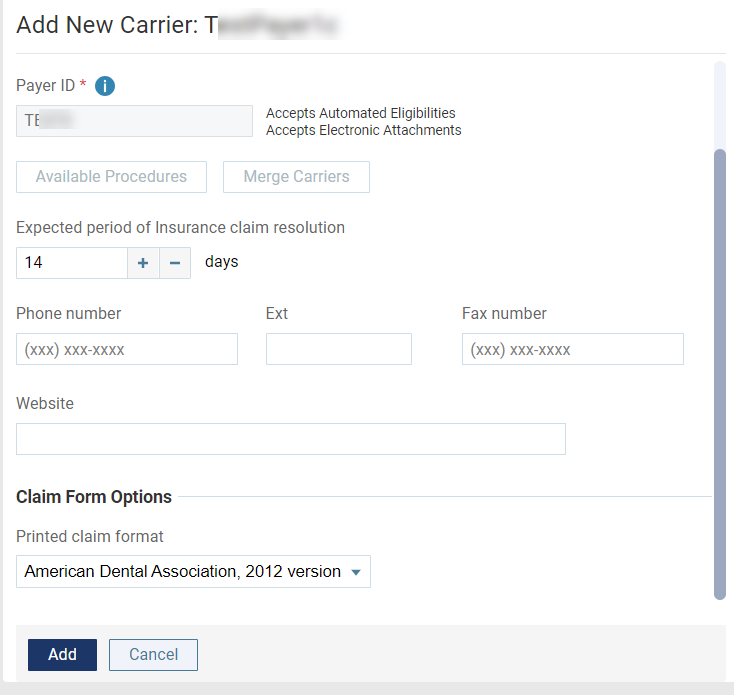
The options for entering a new carrier become available.
-
From the Carrier Name field, search for and select a carrier.
Complete the following:
-
Enter the insurance carrier's name to narrow the search results.
-
Complete one of the following:
-
ClickTap an insurance carrier name to populate the other fields.
-
If the correct insurance carrier name is not listed, enter the full name (the name must start with a number or letter, not a special character), and configure the other options as necessary:
-
Expected period of insurance claim resolution - The number of days after which you want to consider claims that are sent to the insurance carrier as being overdue. By default, the turnaround time is set to 14 days, but you can specify a different number of days to reflect the time frame that the carrier usually requires to process claims.
-
Phone number - The insurance carrier's main contact phone number and Extension (if applicable).
-
Fax number - A fax number for the insurance carrier.
-
Website - The insurance carrier's website address.
-
Printed claim format - For printed claims, select the ADA claim format that this carrier accepts: 2012, 2019, or 2024.
-
Notes:
-
You cannot change the Carrier Name after you clicktap Add.
-
You cannot change the insurance carrier's Payer ID. The ID comes from a database (maintained by Henry Schein Practice Solutions) of payers that accept electronic claims, or if the payer is not supported, the ID is 06126 (in which case, the clearinghouse will have to print and mail a hard copy of the claim to the payer).
-
You must save the insurance carrier's information to make the Available Procedures button available, so you can specify which procedures are available for posting to the records of patients who are covered by this carrier (when the "Carrier procedures" procedure filter is selected during posting).
-
-
-
ClickTap Add.
Important: Each time you add an insurance carrier to your organization's database, for each provider (and location serving as a provider) that is contracted with that carrier, you must go to the Contracted With section of that provider's user account (or location's information) and select the checkbox next to the carrier's name.
Comments
0 comments
Please sign in to leave a comment.