
You can quickly add dependents to a subscriber's insurance plan without having to open each dependent's patient record individually and attach insurance.
Note: The dependents who you want to add to a subscriber's plan must already have patient records.
To add dependents to an insurance plan
How to get there
-
From the Patient menu, under General, select Overview.
The patient's Overview page displays.
Note: If the correct patient is not already selected, use the Patient Search field to access the patient's record.
How to get there
-
From the Patient menu, under Insurance, select Insurance Information.
The patient's Insurance Information page displays.
Note: If the correct patient is not already selected, use the Patient Search field to access the patient's record.
-
Complete one of the following:
-
On a subscriber's Overview page, in the Insurance widget, clicktap an insurance plan's link.

-
On a subscriber's Insurance Information page, clicktap an insurance plan.

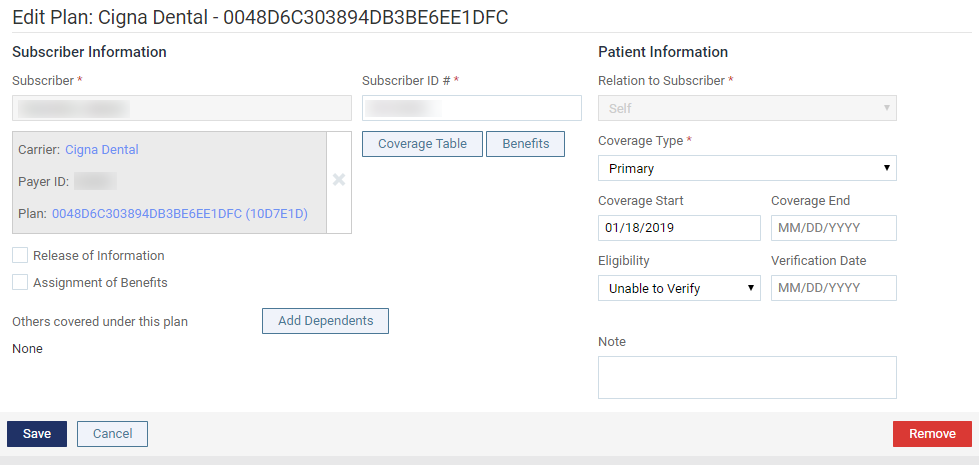
The options for editing insurance information become available.
-
-
Next to Others covered under this insurance plan, clicktap Add Dependents.
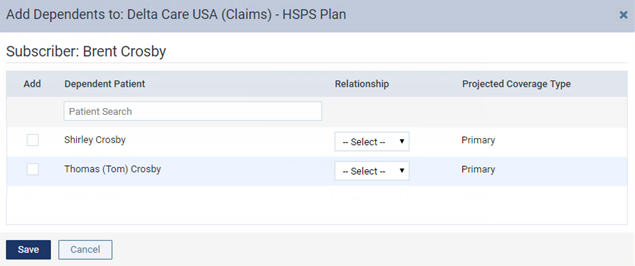
The Add Dependents window displays with a list of patients that are related to the subscriber (the subscriber is a guarantor or a contact person for those patients).
-
If the patient who you want to add as a dependent to the plan is not listed, in the Patient Search field, enter a patient's name to narrow the search results list and select a patient. Repeat for any other patients who you want to add to the list.
Tip: You can include inactive patients in the search results by setting the Include inactive patients toggle to On.
The selected patients display in the list below the search field with the Projected Coverage Type (primary, secondary, or tertiary) for each dependent.
-
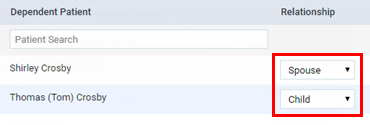
For each dependent, select that patient's Relationship to the subscriber (Spouse, Child, or Other).
-
Select the Add check box of each dependent.
Note: The Add check box is selected automatically if you select a patient using the Patient Search field.
-
ClickTap Save.
Comments
0 comments
Please sign in to leave a comment.