
By default, Ascend Academic automatically calculates the estimated primary and secondary insurance portions, write-off, and guarantor portion for each procedure as needed when it is posted or edited or when actions that cause transfers of responsibility to occur, such as patient and insurance payments. When changes that affect insurance estimates occur at the organization or location level, the estimates for unpaid procedures are not recalculated automatically; however, Ascend Academic does notify you that updated insurance estimates available are when you access an applicable patient's record. Changes to the following can trigger this notification:
-
The Coverage Table attached to an insurance plan.
-
The Coverage Start or Coverage End date on a patient's Insurance Information page.
-
The Maximum Benefits or Required Deductibles for an insurance plan.
-
The Max allowable amount fee schedule for an insurance plan (modifying the fee schedule or switching to a different fee schedule).
-
The Coordination of Benefits for a secondary insurance plan.
-
The Billing Provider from the Insurance Defaults page.
-
The Contracted with status on a provider's User Account Information page.
To recalculate insurance estimates for unpaid procedures
How to get there
-
On the Patient menu, under Financial, select Ledger.
Tip: You can also access a patient's Ledger page from the patient's Overview page > Insurance widget.
Note: If the correct patient is not already selected, use the Patient Search field to access the patient's record.
The patient's Ledger page displays.
How to get there
-
On the Patient menu, under Financial, select Ledger.
Tip: You can also access a patient's Ledger page from the patient's Overview page > Insurance widget.
Note: If the correct patient is not already selected, use the Patient Search field to access the patient's record.
The patient's Ledger page display.
-
ClickTap the amount in the Patient Portion section.

One of the following occurs:
-
If you are viewing the Ledger with the patient view, the Patient Portion page displays.
-
If you are viewing the Ledger with the guarantor view, the Guarantor Portion page displays.
-
How to get there
-
On the Patient menu, under Clinical, select Treatment Planner
Tip: You can also access a patient's treatment plans from the patient's Overview page > Treatment Plan widget.
Note: If the correct patient is not already selected, use the Patient Search field to access the patient's record.
The patient's clinical record displays with the Tx Planner tab selected.
-
Select a case and clicktap Preview.
The treatment plan displays.
-
ClickTap the amount next to Estimated guarantor portion.
The Guarantor Portion page displays.
-
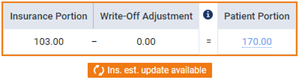
If updated insurance estimates are available, the Ins. est. update available flag displays when you access any of the following pages in a patient's record:
-
The Ledger page.
-
The Patient Portion or Guarantor Portion page (Ledger).

-
The Guarantor Portion page (Treatment Planner).

-
-
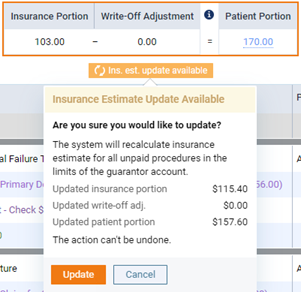
Click Ins. est. update available.
The Insurance Estimate Update Available pop-up displays.
-
Click Update.
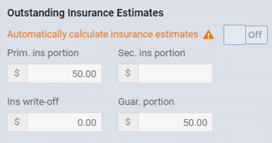
Note: Updating the estimates for unpaid procedures does not update the estimates for procedures that have automatic insurance estimates turned off, so the estimates for those procedures may need to be updated manually.
Comments
0 comments
Please sign in to leave a comment.