
On the Ledger page, Ascend Academic provides a view of details for an estimated patient portion. For each charge listed in the view, you can see how much was charged, if there is a remaining insurance third party portion, if any credit adjustments and payments were applied, and the remaining balance.
To view the details of an estimated patient portion
How to get there
-
From the Patient menu, under Financial, select Ledger.
The patient's Ledger page displays.
Tip: You can also access the Ledger page from the patient's Overview page > Ledger widget.
Note: If the correct patient is not already selected, use the Patient Search field to access the patient's record.
-
On a patient's Ledger page, clicktap the blue Patient Portion amount.

One of the following occurs:
-
If viewing the Ledger with the patient view, the Patient Portion page displays.

-
If viewing the Ledger with the guarantor view, the Guarantor Portion page displays.

-
-
On the Summary View tab, review the following columns for each listed charge.
-
Charge Description - The description of the charge and the date of service.
-
Patient Name - The name of the patient whom the charge corresponds to.
-
Charge Amount - The amount charged. This amount comes from the provider's fee schedule or, if a fee schedule is not attached to the provider, the location's fee schedule.
-
Insurance Portion Remaining - The estimated remaining insurance portion.
-
Credit Adjustment Amount - The total amount of any credit adjustments applied.
-
Payments Made - The total amount of any payments (insurance and patient) applied.
-
Patient Portion - The estimated remaining patient portion. This column displays only in the patient view.
-
Guarantor Portion - The estimated remaining guarantor portion. This column displays only in the guarantor view.
-
-
If necessary, clicktap the Detailed View tab and review the following columns for each listed charge.
Note: You may have to scrollswipe horizontally to see every column.

-
Charge Description - The description of the charge and the date of service.
-
Patient Name - The name of the patient whom the charge corresponds to.
-
Charge Amount - The contracted amount according to the primary insurance plan's fee schedule.
-
Primary Allowable Amount - The estimated remaining insurance portion.
-
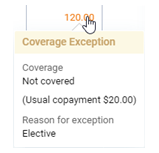
Primary Coverage, % - The percent covered according to the primary insurance plan's coverage table. If the percent is a link, you can clicktap it to view the applicable coverage exception.

-
Primary Copayment, $ - The copay according to the primary insurance plan's coverage table. If the amount is a link, you can clicktap it to view the applicable coverage exception.
-
Primary Deductibles Remaining - The unmet portion of the primary insurance plan's deductible that is to be paid by the patient.
-
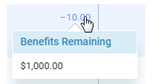
Primary Insurance Portion Remaining - The estimated primary insurance portion. If the amount is a link, you can clicktap it to view the remaining primary plan benefits prior to the primary insurance carrier paying for the charge but after what is expected to be paid by the primary insurance carrier for any outstanding charges listed before this charge.
-
Secondary Allowable Coverage - The contracted amount according to the secondary insurance plan's fee schedule.
-
Secondary Coverage, % - The percent covered according to the secondary insurance plan's coverage table. If the amount is a link, you can clicktap it to view the applicable coverage exception.
-
-
Secondary Copayment, $ - The copay according to the secondary insurance plan's coverage table. If the amount is a link, you can clicktap it to view the applicable coverage exception.
-
Secondary Deductibles Remaining - The unmet portion of the secondary insurance plan's deductible that is to be paid by the patient.
-
Secondary Insurance Portion Remaining - The estimated secondary insurance portion. If the amount is a link, you can clicktap it to view the remaining secondary plan benefits prior to the secondary insurance carrier paying for the charge but after what is expected to be paid by the secondary insurance carrier for any outstanding charges listed before this charge.
-
Credit Adjustment Amount - The total amount of any credit adjustments applied and the estimated write-off adjustment (if applicable).
-
Payments Made - The total amount of any payments (insurance and patient) applied.
-
Patient Portion - The estimated remaining patient portion. This column displays only in the patient view.
-
Guarantor Portion - The estimated remaining guarantor portion. This column displays only in the guarantor view.
-
-
To view a breakdown of adjustments, including the estimated write-off adjustment and payments for a charge, clicktap the charge's description.

Also for your reference, the following totals display at the bottom of the list on both tabs:
-
Total unapplied credits - The total amount of any unapplied credits.
-
Total patient portion - The sum of all patient portions. This amount displays only in the patient view.
-
Total guarantor portion - The sum of all guarantor portions. This amount displays only in the guarantor view.
Notes:
-
Only charges with a remaining balance (insurance and/or patient) display.
-
If the Ledger page's View button > View Mode is set to Guarantor view, the Patient Portion page displays all transaction information on the guarantor and all the patients that have the guarantor set as their guarantor.
-
The insurance portions, credit adjustments, and payments display as negative numbers to help make it clear how they affect the remaining patient portion - they reduce it.
-
The Patient Portion page and the Guarantor Portion page are also different in the following ways:
-
In the patient view, the charges and corresponding breakdowns are for the patient who is currently selected. However, in the guarantor view, they are for the patient who is currently selected, that patient's guarantor (if different), and all the patients who have that guarantor.
-
In the patient view, the totals at the bottom apply to the patient who is currently selected. However, in the guarantor view, they apply to the patient who is currently selected, that patient's guarantor (if different), and all the patients who have that guarantor.
-
-
-
To return to the Ledger page, clicktap Back to Ledger.
Comments
0 comments
Please sign in to leave a comment.