
You may be requested to provide a Console log, Network log, or Performance log from Chrome while working in Ascend Academic.
-
A Console log is a record of the scripts on an Ascend Academic web page.
-
A Network log is a recording of network requests. It allows you to inspect web page performance and recognize issues that are slowing down the Ascend Academic.
-
A Performance log is a recording of the runtime and load performance over a set period of time and indicates how well Ascend Academic acts once it is fully loaded and used by visitors. When recording the performance, you can choose to also take a series of screenshots of the process.
This article will guide you through the steps to generate and save a log from Chrome so it can be provided to the technical support team through Zendesk.
Note: Zendesk has a size limit of 50MB for file uploads. If working with larger files, you can compress files to remain under the limit.
Important: Once generated, log files that contain PHI must remain in Zendesk.
To save a Chrome log
-
Open Chrome and log in to https://app.ascendacademic.com/login.
-
Navigate to the page you are testing and press F12 on your keyboard to open the Developer Console.
-
Complete one of the following:
-
Save a Console log.
-
ClickTap the Console tab.
-
Right-clickTap an entry in the log and select Save As....

-
-
Save a Network log.
-
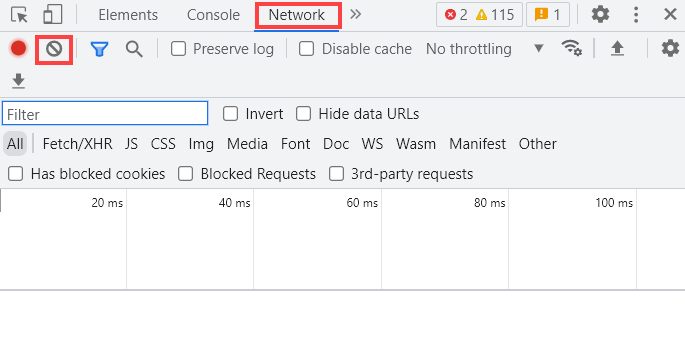
ClickTap the Network tab and clicktap the Clear All icon.
-
Perform the test.
-
Right-clickTap any entry in the log and select Save all as HAR with content.

-
-
Save a Performance log.
-
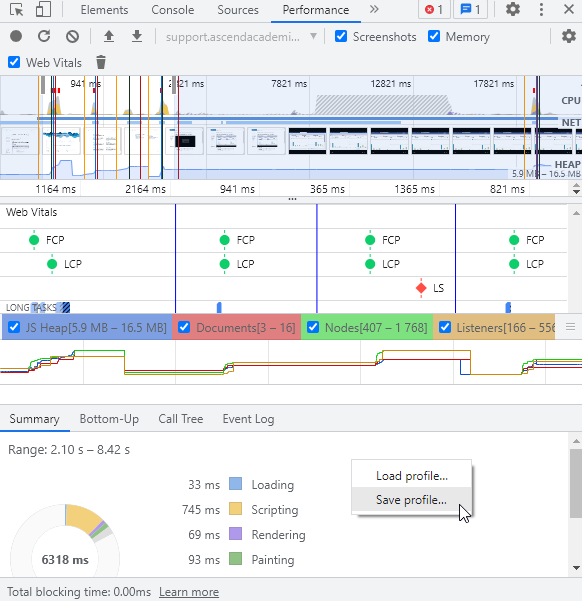
ClickTap the Performance tab.
Tip: If necessary, clicktap the
 icon and select the Performance tab.
-
Select the Screenshots, Memory, and Web Vitals check boxes.
-
ClickTap the Record icon and perform the test.
Important: Uncompressed recordings cannot be any longer than 10 seconds as longer recordings may cause the profile to not save/load as expected and Zendesk does not support uploads of more than 50MB. Compressed recordings can be up to 2 minutes in length.

-
Right-click anywhere within the log and select Save Profile.
-
-
-
(Optional) If necessary, compress the log file(s).
-
Access and select the saved file(s) that are going to be compressed.
-
Right-click the selected file(s) and select Send to, then Compressed (zipped) folder.

-
Comments
0 comments
Article is closed for comments.