
In some situations, you may be required to disable IPv6 on your Windows or Mac machine to use Ascend Academic. This article will guide you through the steps to disable IPv6 on Windows 10, Windows 11, newer macOS, and older macOS.
To disable IPv6 on Windows 10
-
On the taskbar, right-click the network icon and select Open Network & Internet settings.

-
When prompted with an open window, click Network and Sharing Center.

-
Under View your active networks, click your network.

-
When prompted with a new window, click Properties.

-
Deselect the Internet Protocol Version 6(TCP/IPv6) checkbox and click OK.
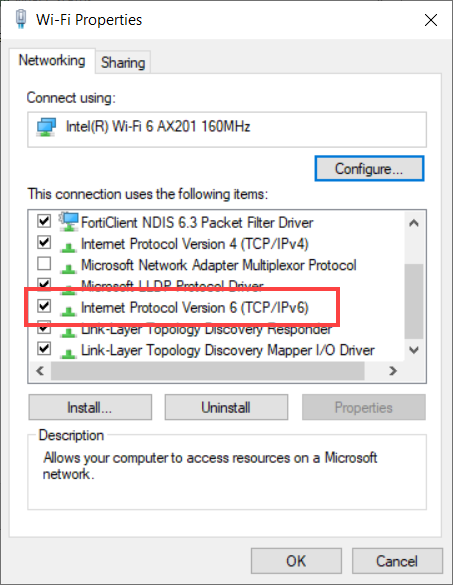
-
Restart your computer.
To disable IPv6 on Windows 11
-
On the taskbar, right-click the network icon and select Network and Internet settings.

-
When prompted with the Settings app, click Advanced network settings.
-
Under Related settings, click More network adapter options.

-
Right-click Ethernet and select Properties.
-
When prompted with a new window, deselect the Internet Protocol Version 6(TCP/IPv6) checkbox and click OK.

-
Restart your computer.
To disable IPv6 on a newer macOS
-
From Launchpad, open System Settings.
-
Click Network and click the Details... button next to your network.

-
Click TCP/IP.
-
Next to Configure IPv6, select Link-Local Only from the drop-down list.

-
Click OK.
-
Restart your computer.
To disable IPv6 on an older macOS
-
From Launchpad, open Terminal.
-
Complete one of the following:
-
If disabling IPv6 on your WiFi connection, enter networksetup -setv6off Wi-Fi.
-
If disabling IPv6 on your Ethernet (wired) connection, enter networksetup -setv6off Ethernet.
-
-
Restart your computer.
Comments
0 comments
Please sign in to leave a comment.