
If the automatic insurance estimate overrides feature is enabled, you can modify insurance estimate overrides that are associated with a completed procedure.
Note: You need the Unlock Insurance Overrides security right to edit locked insurance estimates. If you do not have the security right, a different user with the security right can unlock the insurance estimates at your workstation.
To edit locked insurance estimate overrides
How to get there
-
From the Patient menu, under Financial, select Ledger.
The patient's Ledger page displays.
Tip: You can also access the Ledger page from the patient's Overview page > Ledger widget.
Note: If the correct patient is not already selected, use the Patient Search field to access the patient's record.
-
Open a patient's Ledger page.

-
Select a procedure.
The Edit Procedure window displays.

-
ClickTap the
 icon on the Insurance Estimate Overrides section to display the Unlock insurance Overrides tooltip.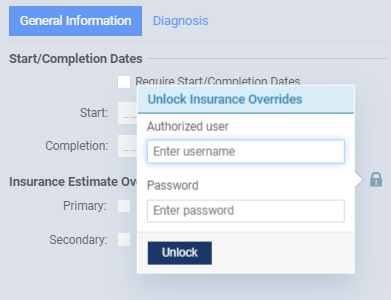
-
Enter your credentials in the Authorized user and Password fields.
Important: If you do not have the Unlock Insurance Overrides security right, you can have a different user with the security right enter their credentials to unlock the insurance estimates.
-
ClickTap Unlock.
The override options become available for editing.

-
Complete any of the following:
-
Add a Primary and/or Secondary estimate.
-
Select the Primary or Secondary check box.
-
Enter the amount in the corresponding field.
-
(Optional) Repeat Steps a-b to edit the other estimate.
-
-
Change a Primary and/or Secondary estimate.
-
Enter the amount in the corresponding Primary and/or Secondary field.
-
-
Remove a Primary and/or Secondary estimate.
-
Deselect the Primary and/or Secondary check box.
-
-
Recalculate the estimates.
You can recalculate the estimates by using the latest coverage information on the patient's record and entering the amounts in the Primary or Secondary field.
-
ClickTap the
 icon.
icon.
-
Note: The sum of both estimates cannot exceed the charged amount of the procedure.
-
-
ClickTap Save.
Comments
0 comments
Please sign in to leave a comment.