
Sometimes a payor includes multiple claims on an explanation of benefits (EOB) and sends you one payment to cover those claims. You can split an insurance payment between multiple claims by entering a bulk insurance payment and then applying part of that payment to each claim without having to open each patient's record individually to post a payment.
Notes:
-
You can create bulk insurance payments according to your security rights for the Ledger.
-
The creation of a bulk insurance payment displays in the audit log.
-
Simulation (sim) patients display with a SIM label.
To enter a bulk insurance payment
-
From the Home menu, under Insurance, select Bulk Insurance Payments.

-
Click Tap Create New Bulk Payment to open the Create New Bulk Insurance Payment window.

-
From the Payment Information tab, set the following options:
-
Carrier name - Enter the carrier that the payment is coming from and select the correct carrier.
-
Payment date - Select the date of the payment. According to your organization's policy, this may be the date that the check was issued, deposited, or recorded or that the electronic funds transfer (EFT) was authorized, transferred, or recorded.
-
Amount - Enter the payment amount.
-
Payment type - Select whether the payment is a check or an EFT.
-
Check # - Enter the check number. This option is available only if the payment type is a check or medical insurance payment.
-
Reference # - Enter the reference number of the electronic funds transfer. This option is available only if the payment type is an electronic payment.
-
Transaction ID - Enter the ID number of the transaction. This option is only available if the payment method is a credit card payment.
-
Bank/Branch # - For check payments, enter your office's bank account number.
-
-
Click Tap Next or select the Select Claims tab.
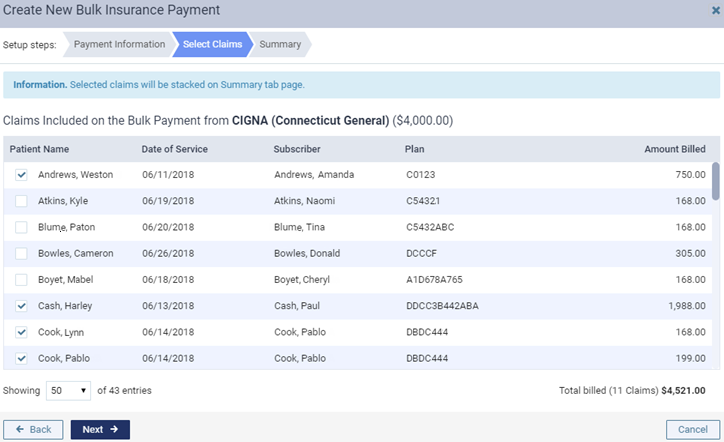
The Select Claims tab lists outstanding claims for the selected carrier.
-
Select the check box for each claim this payment applies to.
Note: Each claim displays the patient name, date of service, subscriber, plan name, and amount billed to help you identify the correct claims.
-
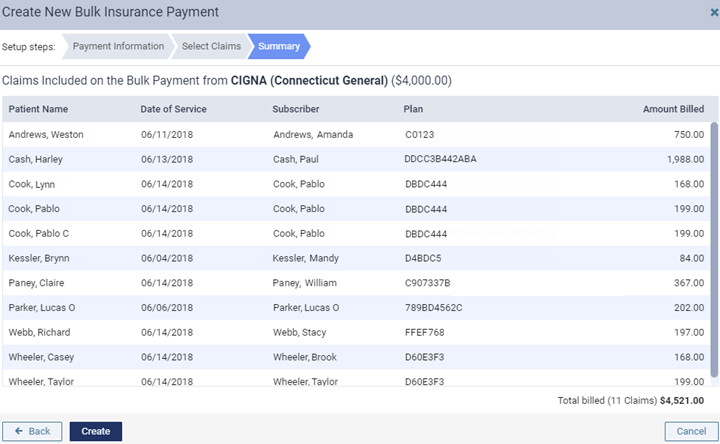
Click Tap Next or the Summary tab.
The Summary tab lists the selected claims.
-
Click Create.
The new payment displays on the Bulk Payments in Progress panel of the Bulk Insurance Payments page.

-
You can now apply portions of the payment to the selected claims.
Comments
0 comments
Please sign in to leave a comment.