
You can remove procedures from your personal favorites as needed.
To remove procedures from your personal favorites
How to get there
-
On the Patient menu, under Clinical, select Chart.
The patient's clinical record displays with the Chart tab selected.
Note: If the correct patient is not already selected, use the Patient Search field to access the patient's record.
-
On a patient's record > Chart tab, select one or more teeth.
-
ClickTap Add Procedure to display the Add Procedure window.
-
ClickTap one of the following tabs:
-
Tx Plan (for potential future services)
-
Completed (for today's services)
-
Existing (for past services performed at another practice).

-
-
Complete any of the following:
-
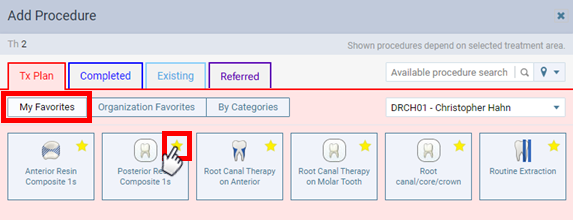
ClickTap the My Favorites button and clicktap a procedure's yellow star icon.
-
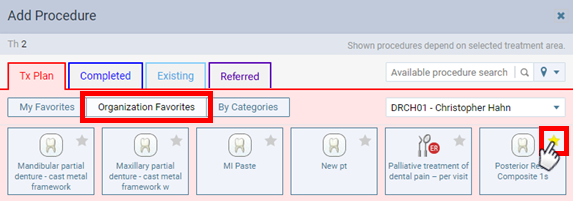
ClickTap the Organization Favorites button and clicktap a procedure's yellow star icon.
-
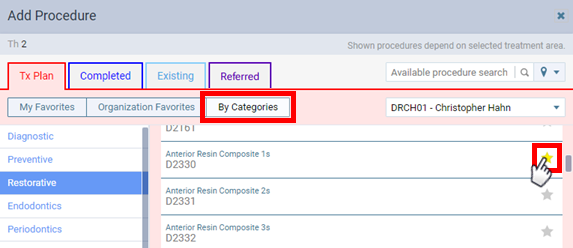
ClickTap the By Categories button, select a category, and clicktap a procedure's yellow star icon.
-
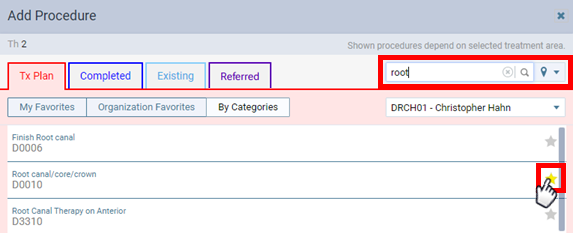
Enter text in the Available procedure search field and clicktap a procedure's yellow star icon.
-
-
Repeat Step 4 as needed to remove other procedures from your personal favorites.
-
Close the Add Procedure window.
Note: Ascend Academic remembers whether My Favorites or Organization Favorites was selected, and that option is selected by default the next time someone accesses the Add Procedure window on this computer. If By Categories was selected, Organization Favorites is selected the next time someone accesses the window on this computer.
Comments
0 comments
Please sign in to leave a comment.